Workspace Switcher
Ctrl+Tab workspace switching and back/forward navigation through Paseo workspaces, sessions, tabs, plugin pages and Settings.

该插件的概览尚未翻译为你的语言,因此以英文显示。
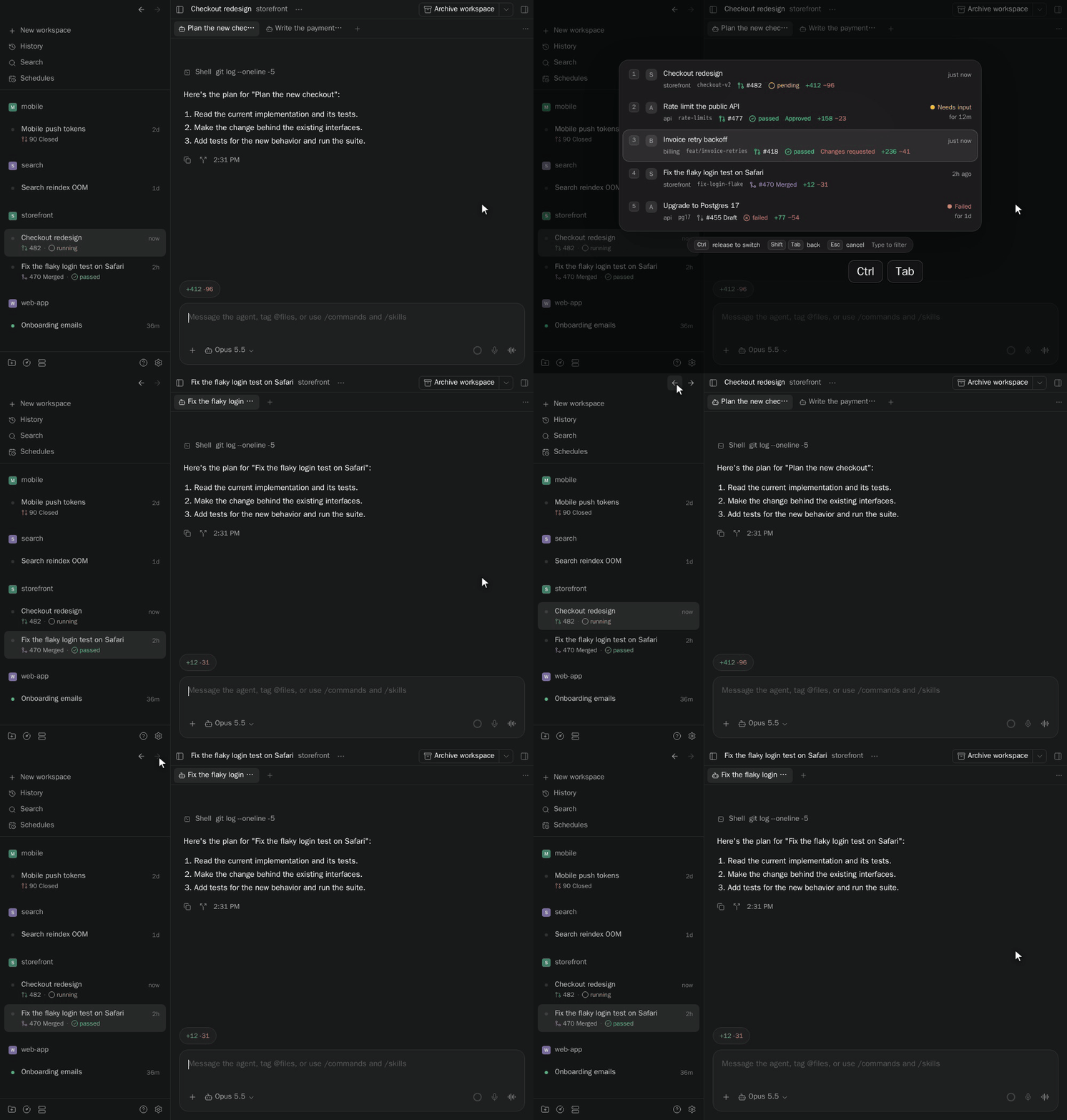
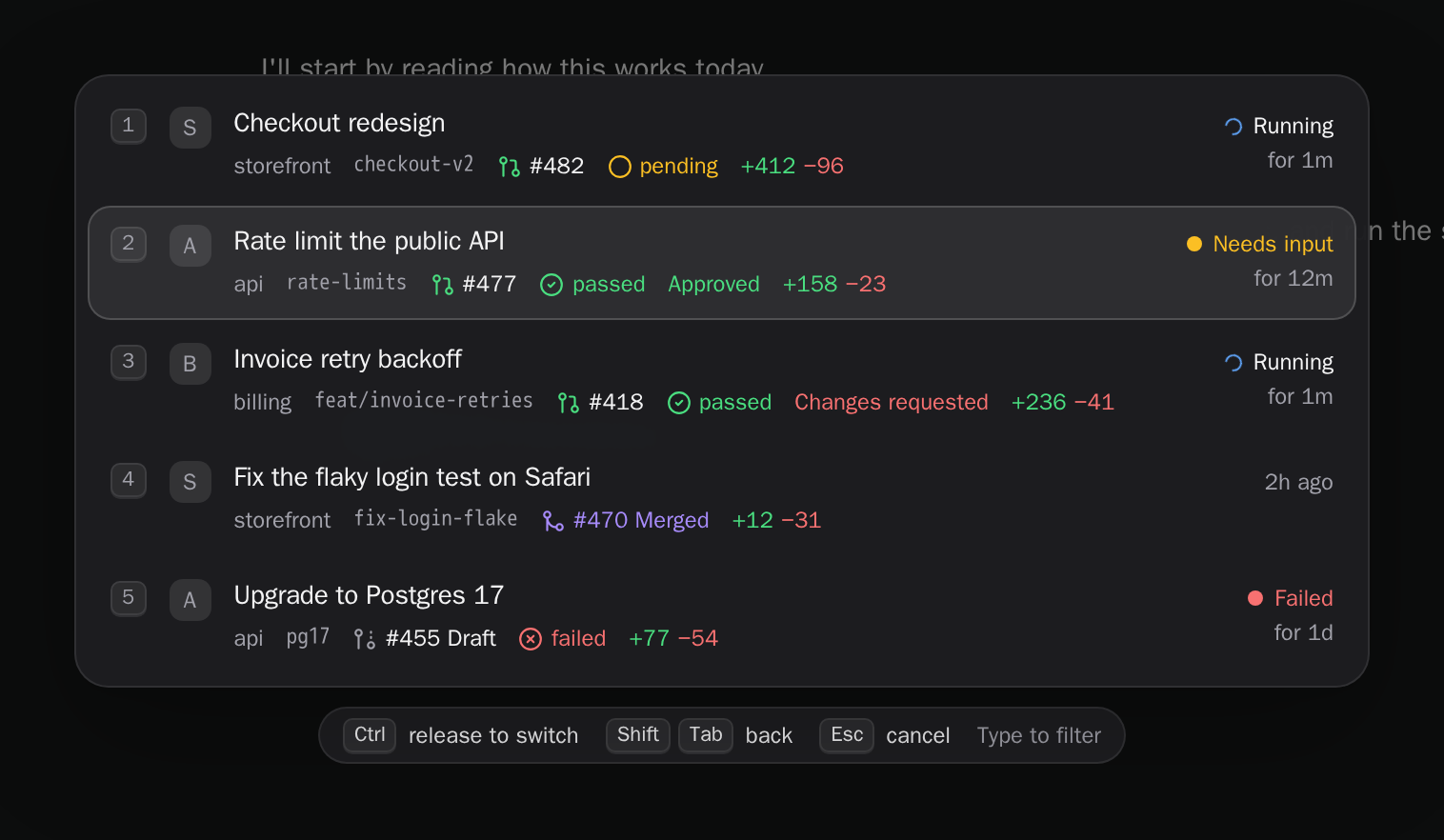
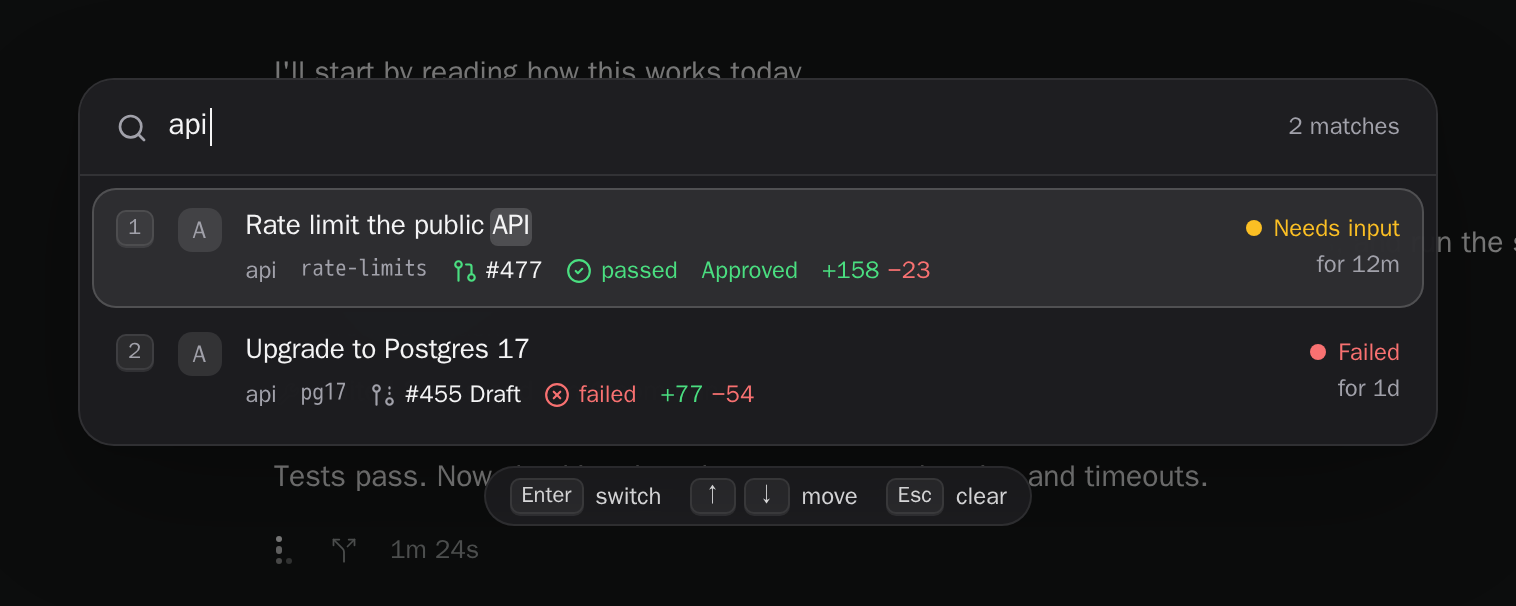
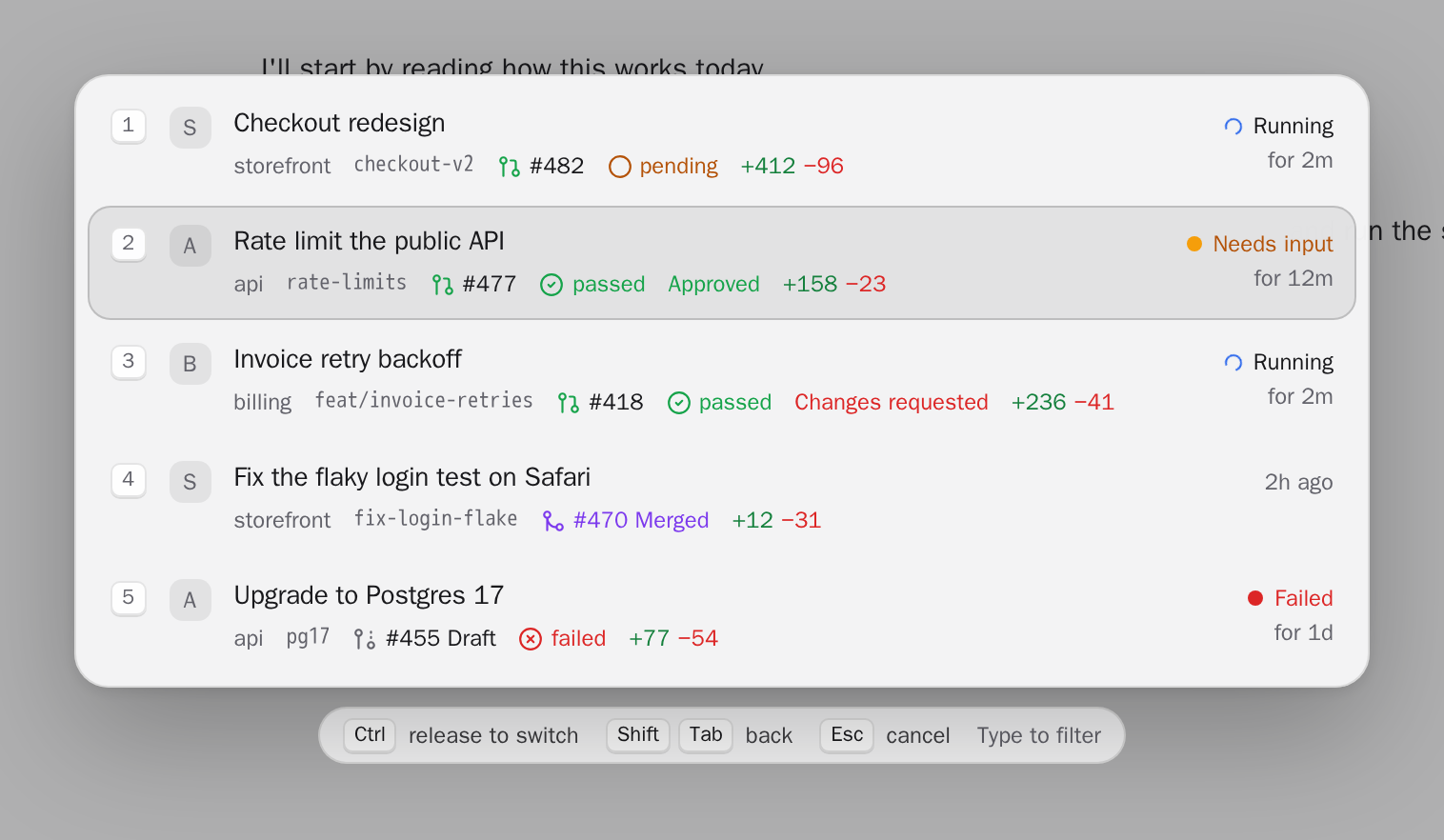
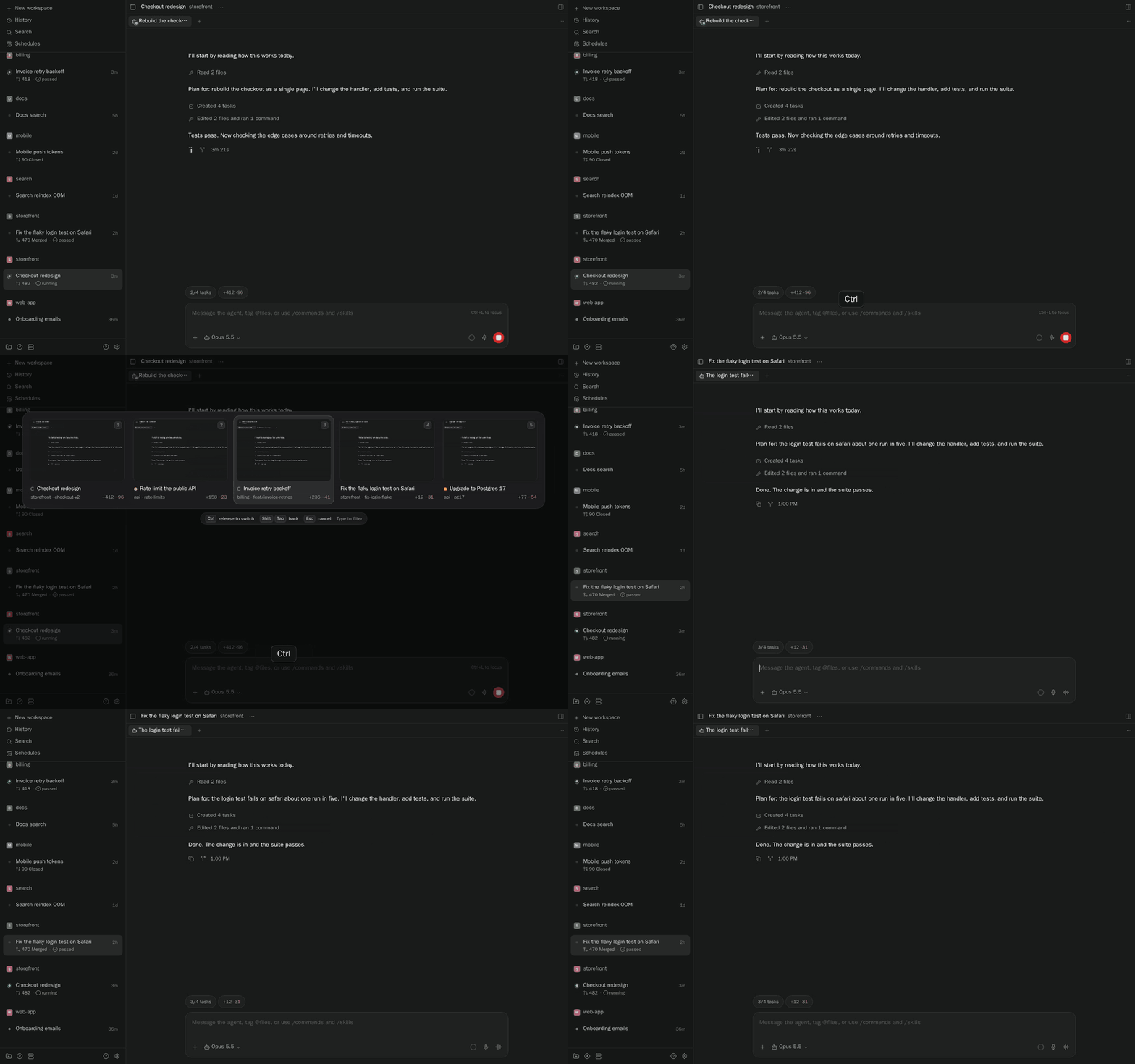
Arc-style workspace switching for the Paseo desktop app. Hold Ctrl and tap Tab to step through your most recently used workspaces, shown as a list with each one's full name, branch, pull request and agent status. Release Ctrl to switch. A quick Ctrl+Tab flips straight back to the previous workspace without drawing anything. Start typing while it is open to find any workspace by name, project, branch or pull request number.
Keys
- Ctrl+Tab / Ctrl+Shift+Tab: open the switcher and move forward or back
- Release Ctrl: switch to the selected workspace
- Arrow keys move, Enter switches, 1 to 9 jump straight to a row, Esc cancels
- Typing filters all workspaces and keeps the switcher open until Enter or a click; Esc clears the filter
- Hovering a row selects it and clicking switches to it
The Command Center also has Switch workspace (Ctrl+Tab), which opens the same switcher and waits for Enter or a click. Use it in a browser tab, where the browser keeps Ctrl+Tab for itself, or in a phone browser, where a tap switches.
Back and forward
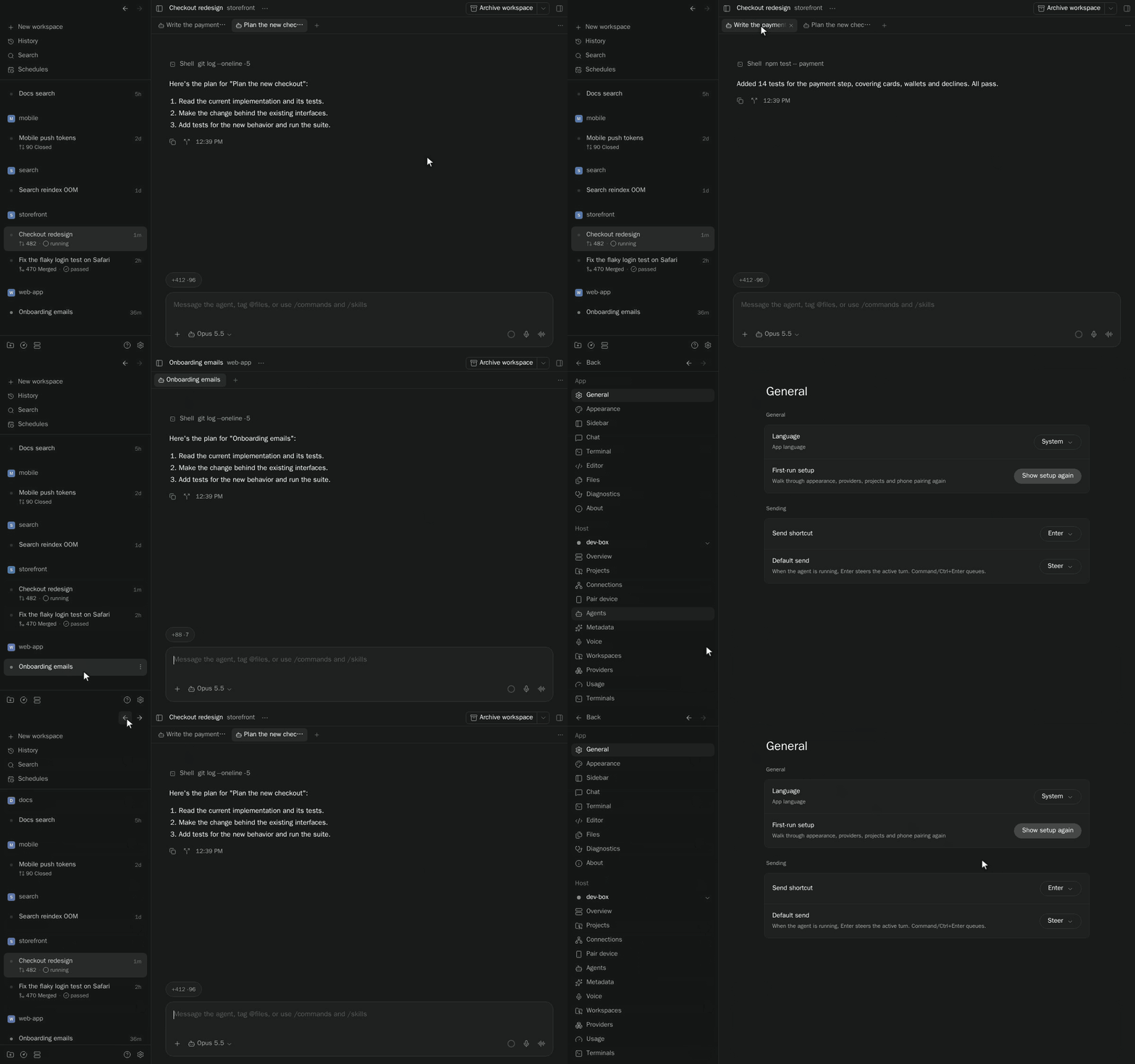
The arrows at the top of the sidebar move through visited workspaces, sessions, tabs, plugin pages and Settings. Back from plugin settings restores the workspace and selected tab you left. Closed tabs are skipped, and a new visit after Back clears the forward branch. History is kept only for the current window until reload; Ctrl+Tab still uses its own recent-workspace order.
Mouse side buttons and the Command Center's Go back and Go forward commands also navigate. Keyboard defaults: Ctrl+- / Ctrl+Shift+- on macOS, Alt+Left / Alt+Right elsewhere.
Settings
Settings → Plugins → Workspace Switcher saves preferences on each device along with the recent-workspace order:
- Layout: List (the default) shows each workspace's full name, project, branch, pull request and checks, diff stat, unpushed commits, and what its agent is doing and for how long. It takes no thumbnails. Thumbnails shows a row of cards with a preview of each workspace instead.
- Workspaces shown: how many recent workspaces appear, 2 to 9, default 5.
- Back and forward: on by default. Off disables the arrows, shortcuts, mouse side buttons and Go back / Go forward commands, and stops recording history.
- Arrows in the sidebar: show or hide the arrows while keeping the shortcuts, mouse buttons and commands.
- Back / forward shortcuts: choose Alt+Left/Right, Ctrl+- / Ctrl+Shift+-, Cmd+[ / Cmd+], or None.
Cards
The switcher shows your most recently visited workspaces. Until you have visited enough of them, the rest fill in by latest activity. Agent status follows Paseo's sidebar: a turning ring while an agent runs, amber when it needs input, red when it failed, and green when it finished and you have not looked yet.
In the Thumbnails layout, thumbnails are small images of the workspace view, focused on the conversation. While you stay in a workspace, the plugin refreshes its thumbnail every couple of seconds when the browser is idle. It never does this work while you are switching. Thumbnails are kept in memory only, so a workspace you have not opened since the app started shows "No preview yet" instead. Terminals, embedded previews and images loaded from the web appear blank in thumbnails.
Limits
This plugin reads Paseo's page structure, which is not a public plugin API. It is pinned to Paseo 0.15 and may need an update when Paseo changes. It does nothing on iOS and Android.