
Host screen
See and control the Paseo host's screen (macOS, Linux on Wayland or X11, experimental Windows) from any paired Paseo client, over the existing Paseo connection.


该插件的概览尚未翻译为你的语言,因此以英文显示。
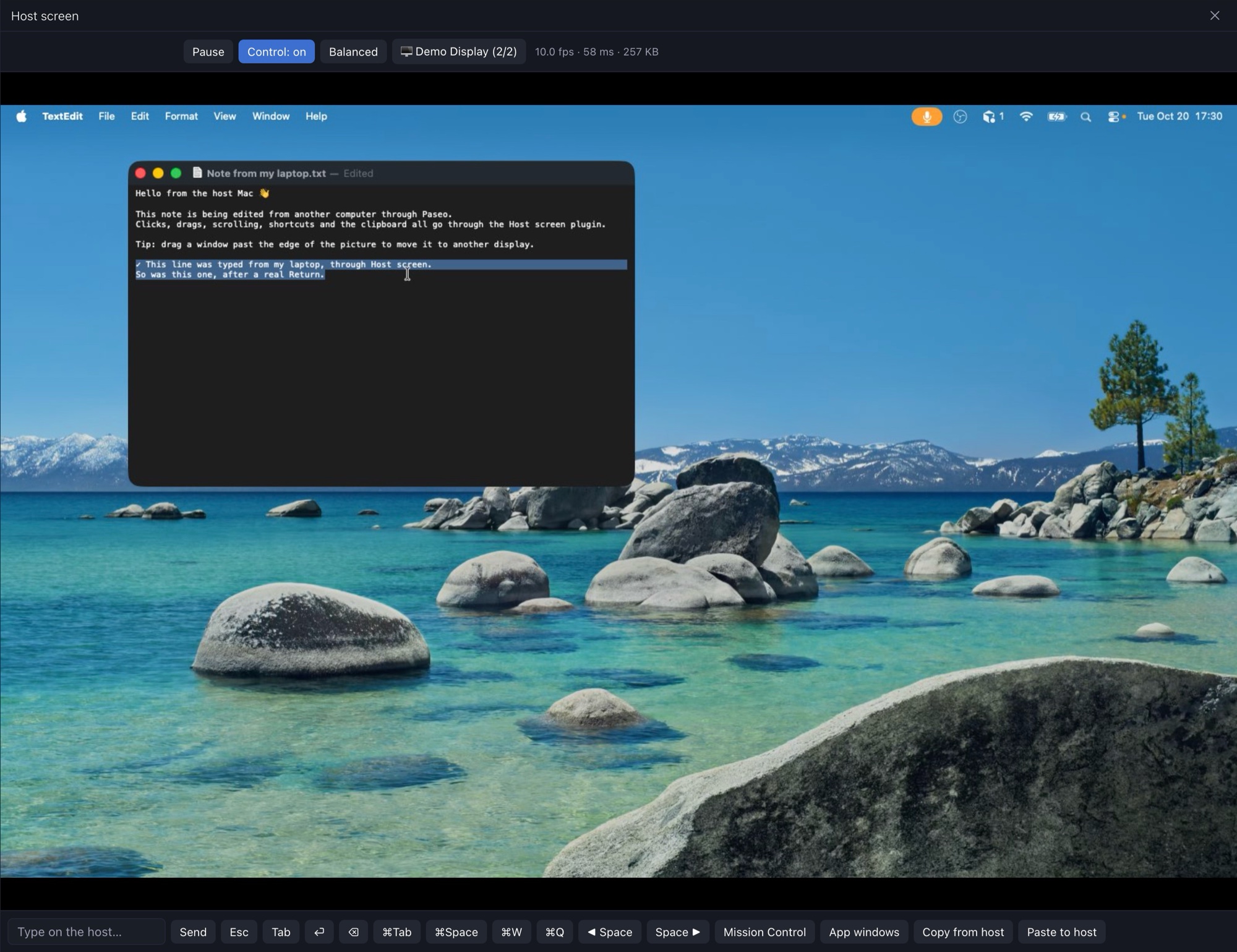
Host screen shows the desktop of the Mac or Linux computer running your Paseo daemon and lets you control it with mouse and keyboard, from any Paseo client paired with that host: the desktop app, the web app or your phone. Frames and input travel over the existing Paseo connection, including the relay, so there is no extra port, VPN or account to set up.
How it works
The daemon runs a small native helper. On a Mac it captures the screen with ScreenCaptureKit and posts mouse and keyboard events through Core Graphics; on Linux it uses X11, or on Wayland the desktop's screen sharing portals and PipeWire. Frames travel as JPEG images. Frames are sized to your viewer, two requests stay in flight, and unchanged frames are skipped. Expect roughly 5 to 15 frames per second depending on the network. That is plenty to watch a browser test or click through a dialog, but it is not smooth video.
Setup
The host must be a Mac running macOS 14 or later with the Xcode command line tools installed, or a Linux computer with a desktop session and a C compiler plus development packages, because the helper is compiled on first use. On Wayland, the default on current Ubuntu and Fedora (on Ubuntu: sudo apt install gcc pkg-config libglib2.0-dev libgstreamer1.0-dev libgstreamer-plugins-base1.0-dev libjpeg-dev gstreamer1.0-pipewire), someone at the host answers the desktop's screen sharing dialog once: turn on Allow Remote Interaction (off by default; without it the screen can only be watched) and Allow Clipboard Access, then choose Share. The choice is remembered until the host stops sharing from the desktop's sharing indicator. On X11 (on Ubuntu: sudo apt install gcc libx11-dev libxext-dev libxtst-dev libxrandr-dev libxfixes-dev libjpeg-dev) nothing needs approving. Paseo plugins must be enabled on the host. On a Mac, someone at the host must give Paseo two permissions once in System Settings, Privacy and Security: Screen Recording (to see the screen) and Accessibility (to control it). Then quit and reopen Paseo on the host. The viewer shows which permission is missing and has a button that opens the macOS prompts on the host.
Using it
Open Screen for the host from the sidebar, or search "host screen" in the command center.
- On desktop and web clients, click, drag, scroll and type directly on the picture. A drag that leaves the picture continues onto the host's neighbouring display.
- On phones, tap to click, double-tap to double-click, long-press to right-click, pinch to zoom and drag to pan. Rotate turns the picture sideways to use the whole phone screen.
- The key bar sends shortcuts your own computer keeps for itself: Cmd+Tab, Cmd+Space, Cmd+W, Cmd+Q, switching Spaces, Mission Control and App windows on a Mac host; Super+Tab, Activities, Apps, Ctrl+W, Alt+F4 and switching workspaces on a Linux host. From a Mac client, Cmd shortcuts are sent to a Linux host as Ctrl shortcuts.
- On phones, Copy from host puts the host's clipboard text on the phone; to send text the other way, paste it into the "Type on the host" box and press Send. Text clipboard works both ways on desktop and web clients. Cmd+V pastes your clipboard on the host, and Cmd+C on the host copies back to you. With a Linux host, Windows and Linux clients use Ctrl+V and Ctrl+C instead, and terminals there need Shift added (Ctrl+Shift+V, or Cmd+Shift+V from a Mac). Copy from host and Paste to host buttons cover menu copies.
- With several displays, the display button names each one and switches between them. The last choice is remembered on the host.
- Pause remote control stops clicks, keys and clipboard access from every viewer until someone resumes it. Use the pause button on the host's Screen row in the sidebar, or the button in any viewer; viewers can keep watching while paused. View only turns input off for the viewer you are using. Fast, Balanced, Sharp trade resolution for frame rate.
- The host's own mouse, trackpad and keyboard keep working while it is being controlled. On desktop and web clients, the host's pointer only follows yours after you click into the picture, so moving across the viewer doesn't pull it away from someone at the host.
- If the host's display is asleep, opening the viewer or using the mouse or keyboard on it wakes the display. A locked host shows its lock screen; type your password and press Return to unlock it. GNOME on Wayland is the exception: it stops sharing while the screen is locked, so someone has to unlock it at the host, and sharing then resumes. Watching alone never wakes the host, so it still sleeps and locks on its own schedule. If the computer itself goes to sleep, Paseo goes offline with it and nothing can wake it remotely, so set the host not to sleep while plugged in.
Permissions and limits
Anyone paired with this Paseo host can see and control the host computer while the plugin is enabled. That is the same trust that pairing already grants for running agents and terminals. View only is a setting in each viewer, not a lock on the host: other paired clients keep control. Pause remote control applies to the whole host, but any paired client can resume it. To stop all remote viewing and control, disable the plugin on the host. Nothing leaves the Paseo connection. The plugin sends no audio, transfers no files and syncs text only, not images. Keys are sent by physical position, so both computers should use the same keyboard layout. Mac hosts and Linux hosts on Wayland or X11 are supported; Wayland has been tested on GNOME with one display. On Wayland, characters the host's keyboard layout lacks can't be typed, only pasted. Windows 10 and 11 hosts are experimental and have been tested on one PC so far: Windows doesn't let the plugin see or control the lock screen, sign-in screen or UAC prompts, and apps running as administrator ignore its input. On Linux, the key bar's Activities, Apps and workspace buttons follow GNOME's default shortcuts, and the lock-screen notice relies on the GNOME or freedesktop screensaver service.