
Send to Paseo
Local HTTP bridge that dispatches PR work to the right Paseo workspace and agent.


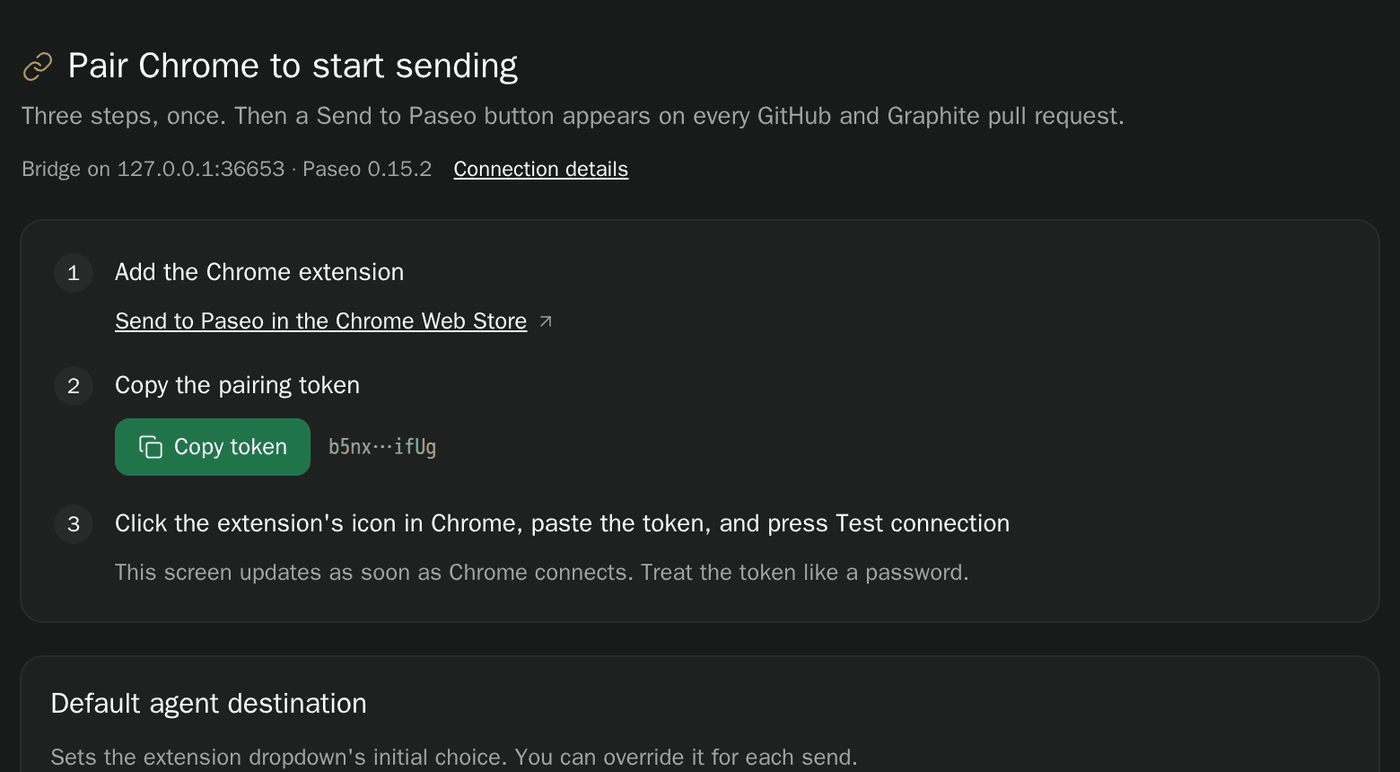


Send to Paseo lets a companion browser extension send a pull request, with an instruction, to a Paseo workspace and agent, creating a worktree checked out to the pull request when no workspace fits. It requires Paseo 0.14.0 or later and uses a separately installed browser extension to send pull requests. After a send, the agent's chat shows a card with the pull request, your instruction and why it landed in that workspace, and the sidebar header has a Send to Paseo item showing bridge status. Interactive Claude and Codex sessions can also ask its bridge-status tool for connection state and executable health; that tool does not send work or change pairing.
Setup
The browser extension must be present. Open the Send to Paseo sidebar screen, copy the pairing token and paste it into the extension's options. Regenerating the token unpairs any extension that has the old one. The daemon host needs git, and the GitHub CLI (gh) is optional: without it you can still pick a workspace and send, but pull request titles and branch names are missing and the default becomes creating a worktree.
What it does and what it can reach
The plugin runs an HTTP bridge on 127.0.0.1 (default port 7788, configurable), and the extension talks only to that bridge. Every request except a health check needs the pairing token, requests from web page origins are refused, and only loopback hosts or your configured private address are accepted.
A send starts a new agent in the workspace, or messages an existing one, depending on the destination setting. That agent can run code on the daemon host with the permission mode you chose, either per send or as the plugin's default, so pair only extensions you trust. Settings also cover the default model and an optional Paseo profile to follow. The pairing token and, for additional machines, connection codes and tokens are stored in the plugin's settings file under $PASEO_HOME/plugin-data/send-to-paseo/ with owner-only permissions. If the daemon requires a password, the plugin reads it from its environment, a daemon password file or that settings file, and does not log it. gh reads pull request metadata using the GitHub account it is signed in to.
The agent status tool returns bridge state, port, pairing status, dispatch mode, default provider and dependency health to the calling agent and its model provider. It excludes pairing tokens, token previews, connection codes, daemon credentials and recent prompt text. The session label plugin-tools/enabled: "false" disables these tools. Overview and Display settings are available from Command-K; hiding the sidebar entry leaves Command-K available.
Optional Follow-up integration
With Follow-up installed on the same daemon, the composer can route a PR instruction back to its registered agent. The send rechecks that the registration is current and the agent still belongs to the selected workspace. Choosing a fresh agent remains available.
The paired extension can also relay Follow-up's Graphite status and Merge when ready requests. With Follow-up 0.3.4+ and the 2.2+ browser companion, the existing pairing advertises repositories with active tracked PRs. Graphite must be open and signed in in Chrome. Toggle changes require confirmation in Chrome unless you remember permission for that machine and repository; revoke that permission or disable browser access in the extension's Follow Up settings. The permission covers later pushes too. These exchanges contain repository/PR identities, head revisions, requested operations and results, and can travel through your configured additional machines.
Private address and several machines
One bridge, beside the browser, can forward to other Paseo machines. Each additional machine shares a connection code containing its private bridge URL and token, so treat the code as a secret. The forwarding bridge reaches it over authenticated HTTPS. The private address must be an HTTPS origin, for example from a reverse proxy, and the Enable private access button runs tailscale serve --bg <port>, which publishes the loopback bridge on your tailnet. Use Tailscale Serve and not Funnel, since Funnel is public.
This plugin entry was imported from paseo.cafe.