Open With
Paseo plugin: open the workspace folder, or a file link in an agent reply, in Fork, GitHub Desktop, VS Code, Cursor, a terminal, or any app you add. Right-click a file link or image to show it in its folder or copy its path.


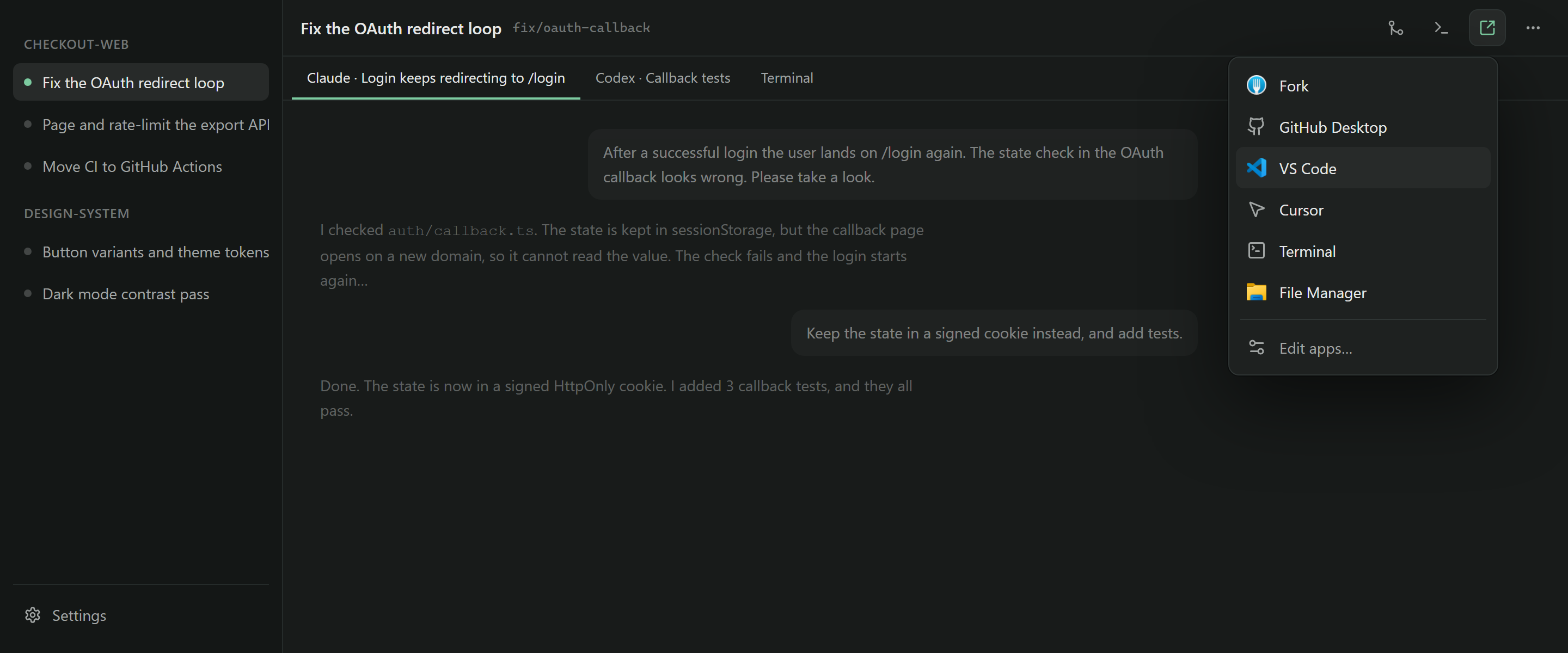

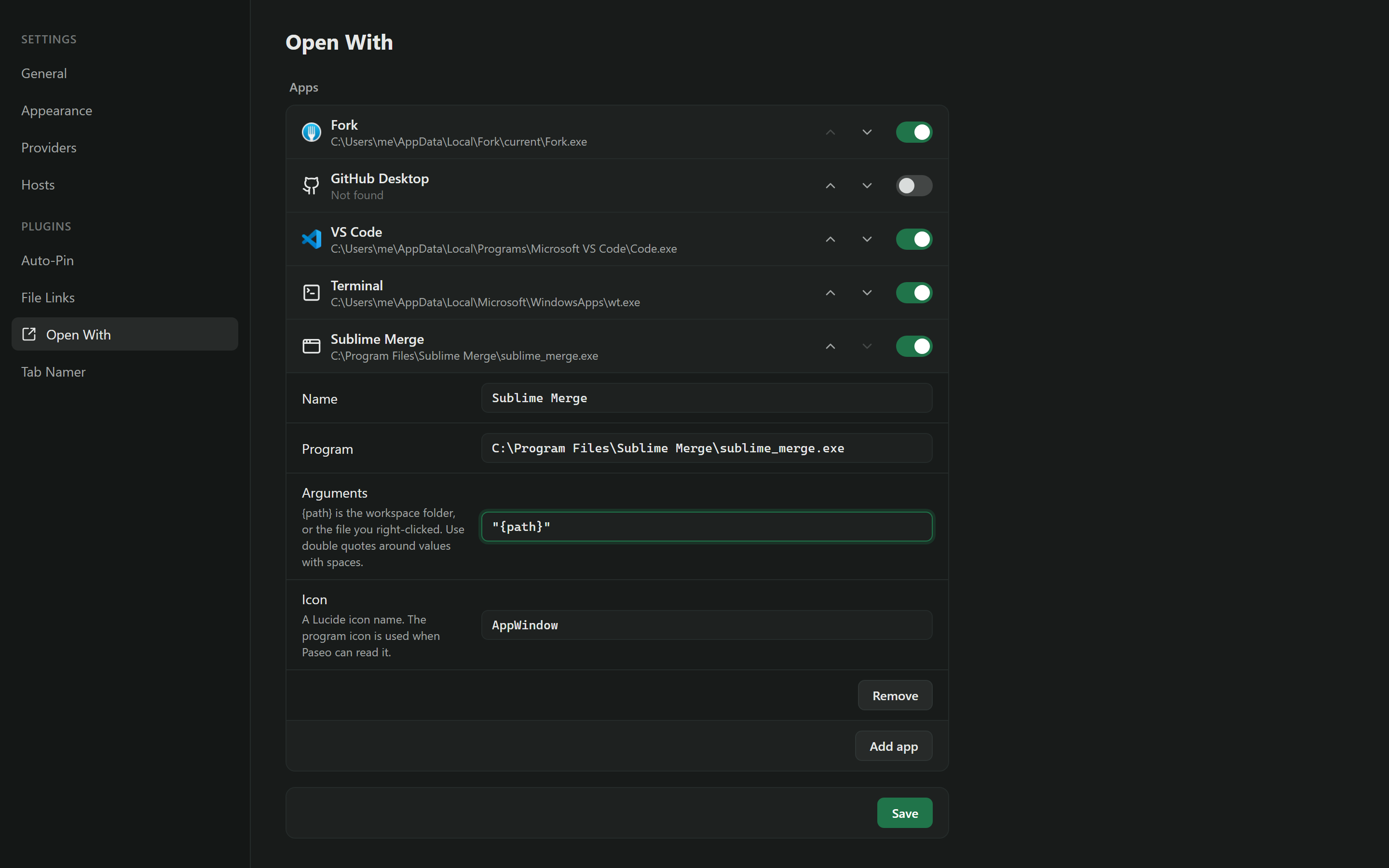

Open With opens the workspace folder, or a file link in an agent reply, in another app.
Paseo's own Open in button has a fixed list of editors. Open With adds terminals, Git clients such as Fork and GitHub Desktop, any program you add, and a right-click menu on file links and images.
Open the workspace
Open With adds a button to the workspace header. Click it, then click an app, and the workspace folder opens in that app.
The menu starts with Fork, GitHub Desktop, VS Code, Cursor, a terminal, and the file manager. It shows only the apps it finds on the computer that runs the daemon. Where it can, it shows each app's own icon.
Open a file link
Right-click a local file link in an agent reply, for example src/app.ts:42 or D:\out\chart.png:
- Show in Folder opens File Explorer or Finder with the file selected.
- Open opens the file with its default app.
- Open With › opens the file in an app from your list. Fork and GitHub Desktop get the git repository that holds the file, and the terminal gets its folder.
- Copy Path copies the absolute path.
Right-click an image in an agent reply to get Copy Image too. Left-click keeps Paseo's own behavior.
Add your own apps
Choose Edit apps… in either menu, or open the plugin settings. There you can:
- Add any program, with its path and its arguments.
{path}in the arguments is the workspace folder, or the file you right-clicked. Put double quotes around a value with spaces, for example-d "{path}". - Change the program path of a built-in app, for example when it is installed in an unusual folder.
- Turn apps off, and move them up or down in the menu.
The settings belong to each daemon, because apps are installed in different places on each computer.
Move from File Links
Open With includes the File Links plugin. If you have File Links, remove it, or every file link gets two right-click menus.
Limits
The daemon starts the app, so the app opens on the computer that runs the daemon. On a remote host, it opens on that host.
Built-in paths are known for Windows and macOS. On Linux, the built-in apps must be on PATH. Program icons are read on Windows only. On other systems the menu shows a generic icon.
The right-click menu works in the desktop and web apps. The mobile app has no right-click.