Auto-Pin
Automatically pin new Paseo workspaces, with defaults and rules for individual projects.


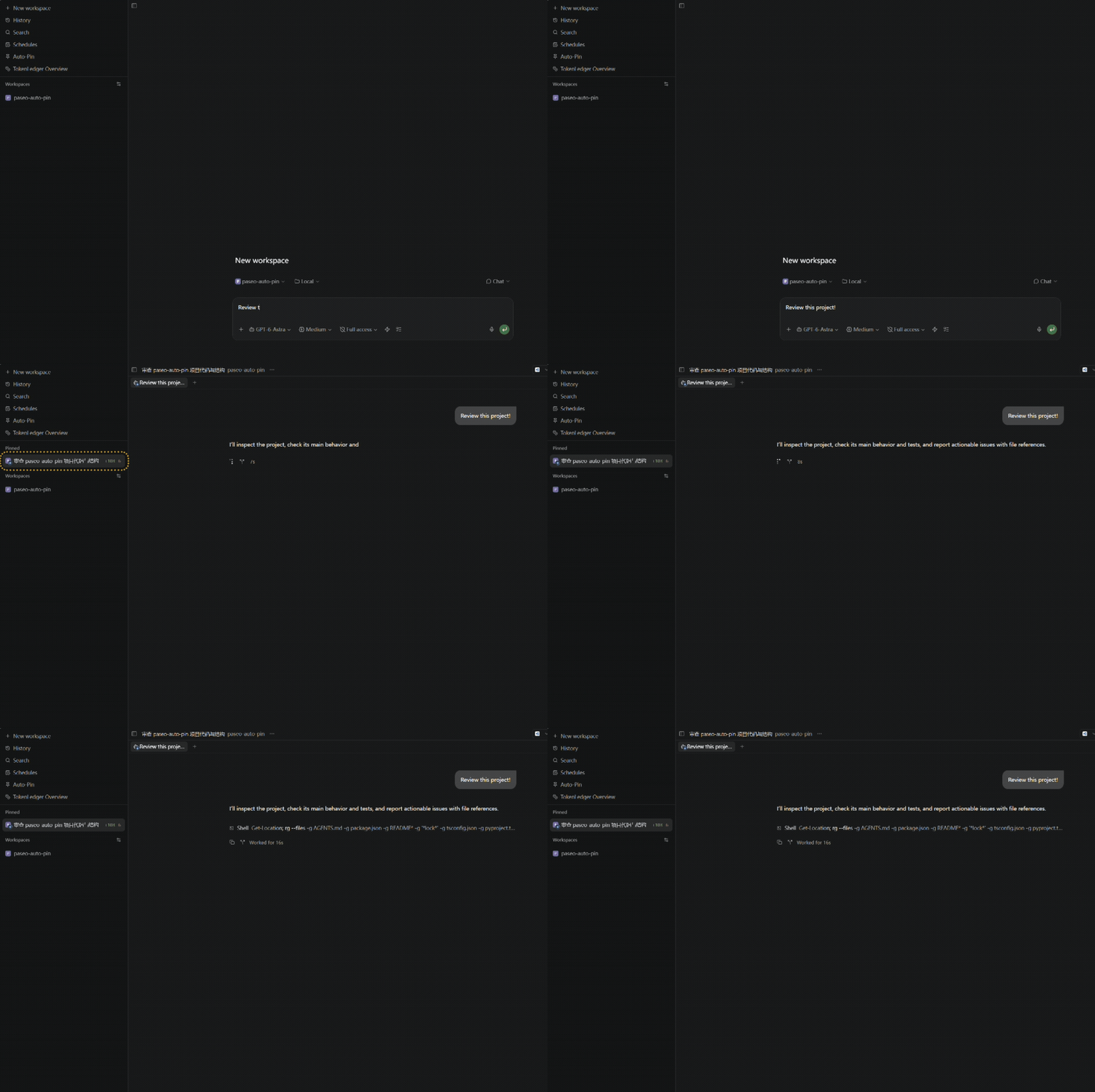
Auto-Pin pins each new workspace as soon as Paseo creates it, so it appears in the Pinned section of the sidebar. It runs on the daemon, so it also works when no app is open and when the Auto-Pin panel is closed.
Pin new workspaces by default is the global switch. It starts on, and you can flip it from the Auto-Pin row at the top of the sidebar. Each project can override it:
- Follow default uses the switch.
- Always pins new workspaces in that project, even when the switch is off.
- Never leaves them unpinned, even when the switch is on.
Rules apply to new workspaces in a project, worktrees included. Set them in the Auto-Pin panel, which lists your Paseo projects with search. From the Command Center you can also toggle the default, or set the rule for the current workspace's project without opening the panel.
The panel, the sidebar switch, and the commands follow Paseo's app language. Simplified Chinese is translated; other languages show English.
Auto-Pin only acts when a workspace is created. Existing workspaces are unchanged, restoring an archived workspace does not pin it again, and the plugin never unpins anything. You can still pin and unpin workspaces yourself. To pause it completely, disable the plugin.
The switch and project rules are Paseo plugin settings on the daemon, shared by every client connected to it. A change on one client shows on the others at once. The plugin pins through Paseo's own API and makes no network connections.