
Quick prompts
Saved prompts as one-tap pills above every agent's composer.

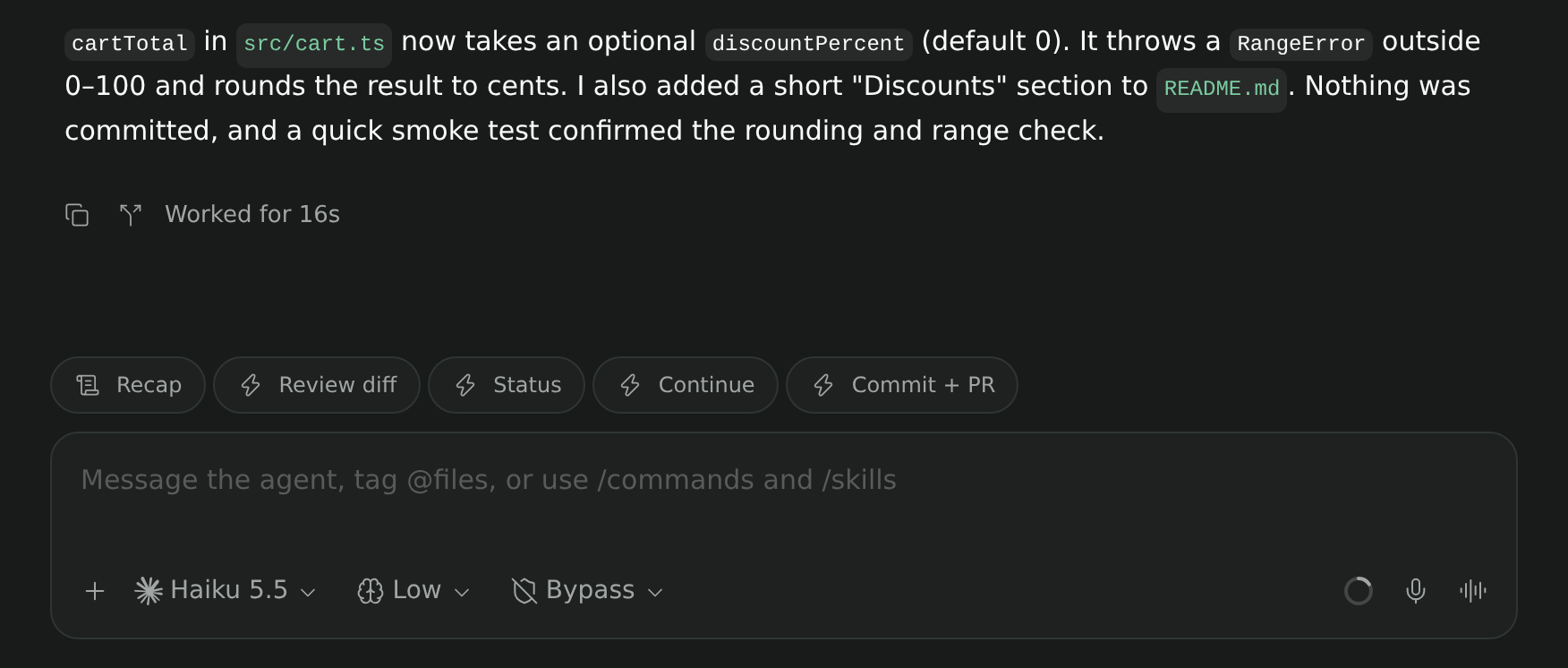
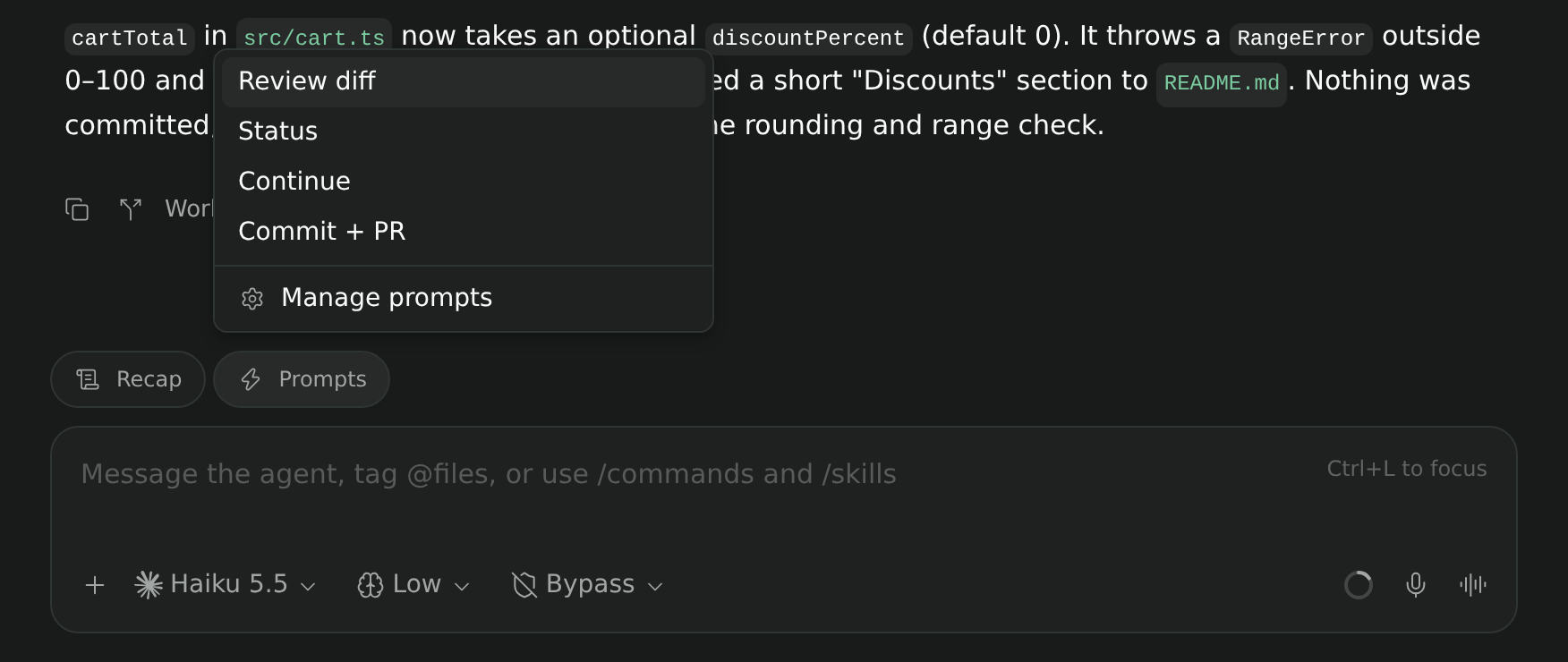
Quick prompts turns the messages you send often into pills above every agent's composer. Tap a pill and its text goes to that agent as your next message, the same as typing it and pressing send. If you prefer a tidier composer, show them all in one Prompts pill that opens a menu instead.
Use it for prompts you repeat across agents, such as "Review the uncommitted changes", "Run the tests and fix failures", or "Summarize what changed and open a PR".
Settings
Quick prompts needs Paseo 0.11.0 or later, with plugins enabled.
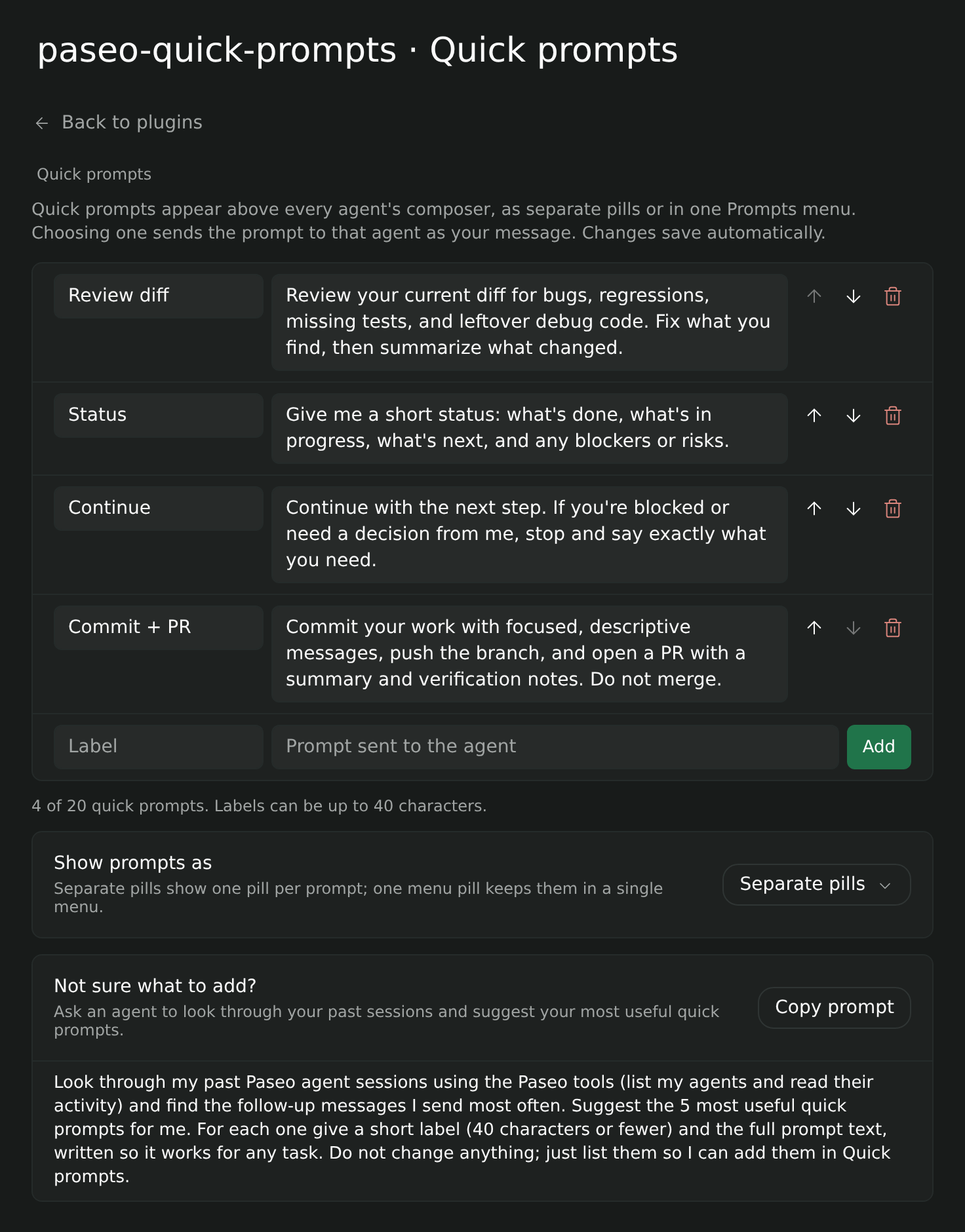
Open Settings → Plugins → paseo-quick-prompts → Quick prompts to add, edit, reorder, and delete prompts and to choose how they appear. Each one has a label, shown on the pill or menu item, and the prompt text that is sent. Changes save automatically: deleting, reordering, and the display option save right away, and an edited label or prompt saves when you leave the field. New prompts go in the last row and are added with Add. If another device deletes a prompt you were editing, your text stays on the page so you can copy it.
- Up to 20 prompts. Labels can be up to 40 characters.
- Show prompts as picks Separate pills (the default) or One menu pill. Either way, prompts follow the order of the list, on every agent that belongs to a workspace. The menu also has a Manage prompts item that opens the settings page.
- With no prompts saved, each agent shows an Add quick prompt pill that opens the settings page.
The settings page also has a tip with a prompt you can copy and send to an agent, which reads your Paseo agent history and suggests the quick prompts you would use most.
Prompts are stored on the Paseo host and shared by every app connected to it.
Limits
- A pill sends right away. It does not put the text in the composer for editing first.
- Pills appear on existing agents, not in the composer for a new agent.