
Paseo Agent Team
Create teams of coding agents with chosen providers and models, coordinated by an orchestrator in one shared workspace.

Concept
Agent team gives a Paseo project a team of agents. One orchestrator agent controls the team, and each role on the team is a separate agent that can use its own provider and model. A team might have a Claude role for gameplay code, a Codex role for design, an Antigravity (Gemini) role for sound and a Cursor role for tests.
You describe a request once. The orchestrator splits it by role and delegates each part to the role that owns it, then reports back to you.
- Each role has its own folders and instructions, so the orchestrator knows which part of the work belongs to whom.
- The team definition is a file in the repository,
.agents/teams/<workspace>.json, so it can be committed and shared through git. - A project can have several teams, but each team belongs to one workspace, and no two teams share a workspace.
Request flow:
request → orchestrator → roles (each with its own provider/model) → results back to orchestrator
Requirements
- Paseo 0.13.0 or newer, and at least one ready provider on the host.
Creating a team
- Open the Agent team workspace panel, or run Agent teams from the Command Center.
- The sidebar's Agent teams screen lists every project with its teams. From there you can open a team's panel in its orchestrator's workspace, start a new team for a project, and reconnect a team whose orchestrator workspace was renamed (see Changing a team).
- Describe your goal to have a planner propose roles, or start with an empty team.
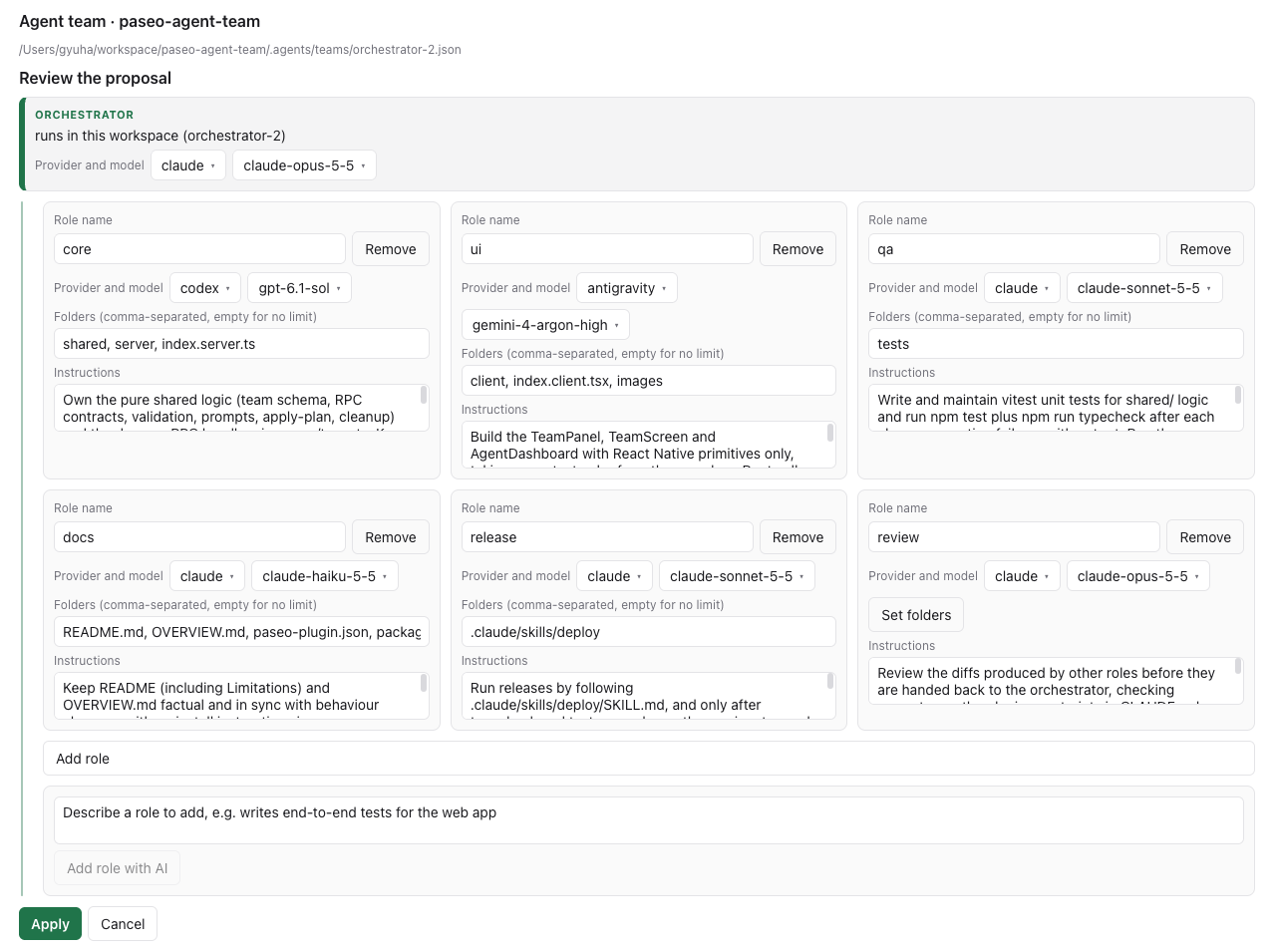
- Review the proposal, then press Apply.
Reviewing a proposal
- Review the names, models, folders and instructions of every role before you press Apply. Every role runs in the orchestrator's workspace.
- A blank role is named
role. If that name is already in use, it gets a#and four random uppercase hex characters, such asrole#4F2A. - Edit team with AI: type a request under the role list. A request that names a role, or whose work fits one, changes that role; a new role is added only when asked for or when no role fits. A planner proposes the revised team, which is applied to the draft at once with a notice of what changed. Undo and Redo step through AI edits. Nothing is written to the team file until you press Apply.
- Edit instructions opens a dialog with the full instructions. Improve with AI asks an instructions planner to propose a rewrite, which you can apply or discard. Save only updates the draft; the team's file is written by Apply.
- A proposal survives leaving the screen. When you reopen it, the plugin picks up the newest planner for that workspace or project, whether it is still running or ready to review.
- Proposing again, or cancelling the review, archives the earlier planner.
Applying
Apply does four things in order:
- Writes the team to its own file. A new team goes to
.agents/teams/<orchestrator workspace>.jsonin the registered project root. A team that already has a file keeps it, including the older.agents/team.json. - Reuses a project workspace whose title matches the orchestrator's workspace, or creates it.
- Starts an orchestrator. If the team's orchestrator is already running on the same provider and model, it is told to re-read the team instead, so no second orchestrator starts. Apply also refuses a team that uses a workspace another team of the project already uses.
- Archives the project's plugin-labelled planner agents and any unused, otherwise empty
Team plannerworkspace. If cleanup fails, the team is still applied and the failure is shown as a warning.
Apply may also write the allow rules described under Agent modes and permissions. After Apply you are taken to the orchestrator's workspace.
Working with the orchestrator
Press Open orchestrator after applying, or find the agent titled Orchestrator in the orchestrator's workspace. Talk to it in plain language, for example: "Redesign the title screen and add jump and coin sounds. Report back when both are done."
- The orchestrator splits the request by role and starts each role's agent in the orchestrator's workspace, with that role's provider and model. It uses
paseo run, or Paseo'screate_agenttool for a role that uses the Auto Accept feature. - Before starting a role, it looks for an existing agent of that role, found by its
role=<name>label, and continues that agent instead of starting a new one. - Each agent it starts is titled
<role>#<id>(for exampleui#ADB2) and labelledrole=<role>, so several agents of one role can be told apart. - It waits for the results and summarizes what each role did.
- Role agents appear in the orchestrator's workspace in Paseo's sidebar, where you can watch them or message them directly.
Your request → Orchestrator splits it by role → each role's agent works in the orchestrator's workspace → Orchestrator waits and reports
Several teams per project
- A project can run several teams, one per workspace. A team belongs to the workspace its orchestrator runs in, and the Agent team panel of that workspace shows that team.
- Each team has its own file in
.agents/teams/, and each team's orchestrator reads only its own file, so teams do not change each other. - To create another team, open the Agent team panel in a workspace that has no team yet and create one as usual.
Workspace A panel → team A (.agents/teams/a.json) → orchestrator in A
Workspace B panel → team B (.agents/teams/b.json) → orchestrator in B
Changing a team
- Open the Agent team panel in the team's orchestrator workspace and press Edit. Change the team and press Apply.
- Or edit the team's file directly and press Apply again in the panel. The panel shows the file's path, the current team, and flags any provider or model the host cannot run.
- Reset session: to reset the orchestrator session with the same team, press Reset session next to Apply again. Use it instead of
/clear. Sending/clearin the orchestrator's chat makes Paseo archive that agent and start a new one with no labels and no instructions, so the plugin no longer treats it as the team's orchestrator. Reset session asks for confirmation, then archives the labelled orchestrator and starts a new one with the same team, provider, model, mode and instructions, read from the team file. Role sessions are kept. Close the agent that/clearcreated yourself. - Reconnect: if you rename the orchestrator's workspace in Paseo, the team shows as "workspace not found" on the Agent teams screen. Press Reconnect on its row and pick the renamed workspace. That rewrites
orchestrator.workspacein the team's file (and in an old.agents/team.jsonfor the same workspace) to the new title. The file name and agents are not changed, and Reconnect refuses a workspace another team uses. If the orchestrator's workspace is gone rather than renamed, the Reconnect panel also offers Start in a new workspace, which runs the team like Apply with its saved file, creating the workspace named in the file if needed and starting the orchestrator there. The panel lists only the project's workspaces that no other team uses, since one workspace runs one team. When none is free, the panel says so and offers only that button and Cancel.
Deleting a team
- Press Delete on the team's row in the Agent teams screen and confirm.
- The delete archives the team's orchestrator, the role sessions labelled with its roles in its workspace (role names match case-insensitively), and any planner still proposing for its workspace, so a pending proposal does not come back.
- Agents in a workspace another team uses are left alone.
- No workspace is archived. Paseo workspaces carry no labels, so the plugin cannot tell a workspace it created from one you made. Empty workspaces stay for you to archive.
- Files are removed only after every agent is archived. Then the team's file and any old
.agents/team.jsonfor the same orchestrator workspace are deleted. - If an agent cannot be archived, no file is deleted, and you can retry from the same row. If a file cannot be deleted, a separate message says so.
- A file committed to git shows up as a deletion to commit.
Watching agents
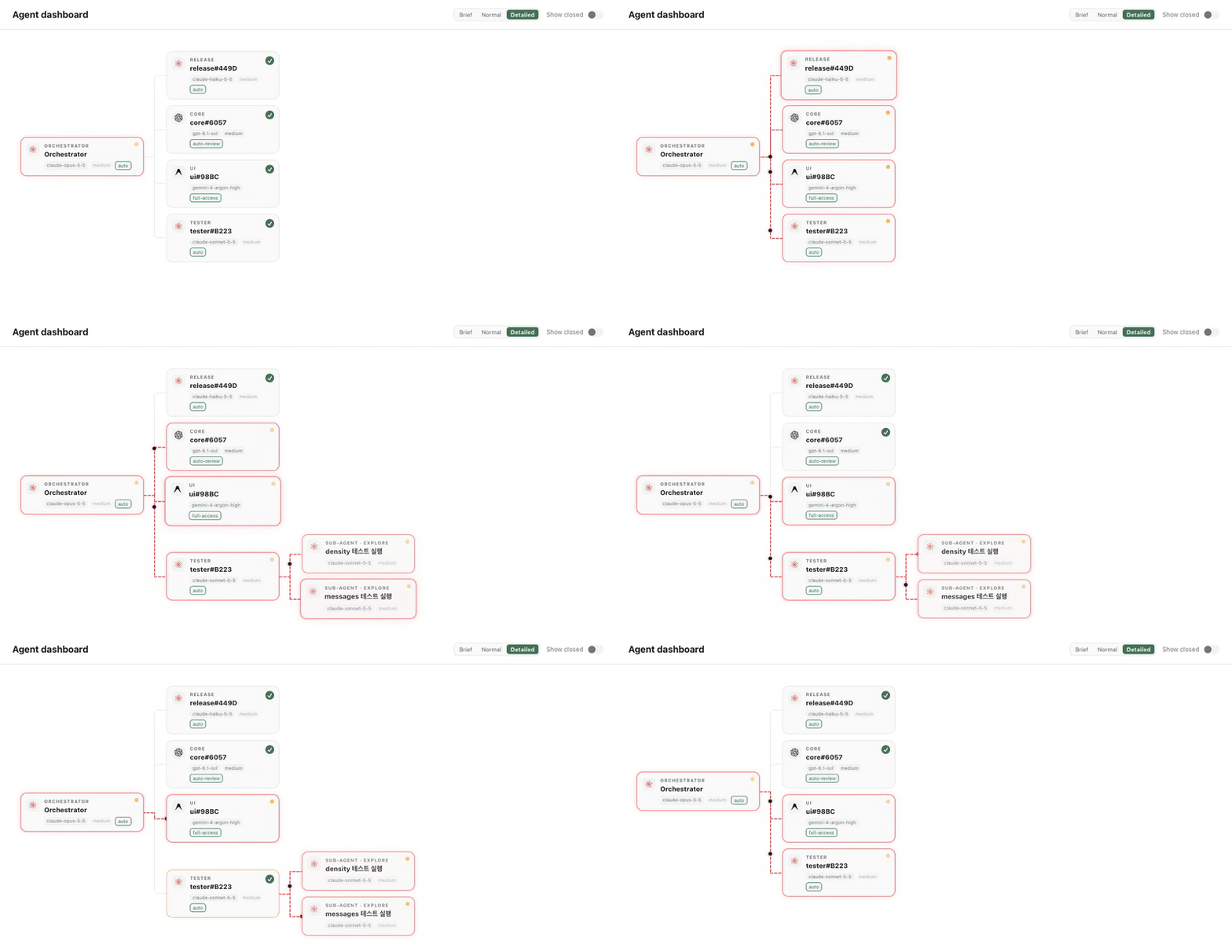
The Agent dashboard panel (에이전트 대시보드 in Korean) opens as a workspace tab or in the right sidebar next to Files and Changes. It shows the project's agents as a tree.
Use the Density toggle in the dashboard header, next to Show closed, to choose one of three levels. Normal is the default.
- Brief: a one-line pill with the provider logo, the role or title, a short model name and the status.
- Normal: a two-line card, 150px wide (140px in a narrow panel), with the logo, title and status, then
model · mode. - Detailed: the full card with caption, model, effort and mode chips, described below.
The choice is remembered per tab, like Show closed. Glow, arrival flash, signal dots and dashes are scaled to each level's node size.
- An agent started by another agent appears under that agent. Role agents started by the orchestrator sit under it.
- Agents with no parent are roots and stay shown unless they are closed or archived. Roots without children are listed under Solo agents.
- Roles of the team that have not been started yet appear under the newest orchestrator of the team's workspace as dimmed Waiting cards on a dashed line. A waiting card is replaced by the real card once an agent labelled with that role shows up in the team's workspace.
- Provider sub-agents, such as those Claude Code starts with its Agent tool, appear as lighter Sub-agent cards (하위 에이전트 in Korean) under the Paseo agent that spawned them, labelled with their sub-agent type. They cannot be opened, since they are not Paseo agents. In Brief density they are collapsed into a +N badge under their parent, which expands on press. With Show closed off, a role agent or sub-agent is shown only while it is running or has the ! badge, when one of its descendants is, or when it is the newest finished one of its type (role, or sub-agent type) under the same parent. Older finished ones, and the agents under them, are hidden. An agent whose parent is not shown becomes a root and follows the same rule. With Show closed on, every agent is shown.
- In Detailed density, each card shows the provider logo, the role or caption, the title, and the model, effort (thinking option) and permission mode chips. When an agent has no effort set, its effort chip shows the model's default effort from the provider, dimmed.
- Badges: ! means the agent is waiting for a permission or has failed. An amber pulsing dot means it is running. ✓ means it has finished.
- Lines to running agents turn into animated red dashes with moving signal dots. An agent that is not running itself but has a running agent below it, such as an orchestrator waiting on its role agents, gets an amber border without the glow.
- Press a card to open that agent. Closed and archived agents are hidden unless Show closed is on.
- With Show closed on, a closed or archived agent card, or a finished sub-agent card, shows a small × that hides it, together with the agents under it, from that dashboard tab. Running cards, cards that need attention (!), and cards with a running agent under them have no ×. The header then shows Restore hidden (N), which brings them all back. When there are closed agents to hide, the header also shows Hide closed (N) at the right, which hides every card that has a × at once. Hiding does not delete or archive anything in Paseo, and the hidden list is kept per dashboard tab, like Show closed.
The dashboard can also sit in the right sidebar while you work in the center of the window.
Agent modes and permissions
Planner, orchestrator and role agents start in the provider's reviewed auto mode when it has one. The order is:
- Codex's Auto-review (
auto-review). - Otherwise an
automode, such as Claude's Auto mode (auto). - Otherwise any other mode whose id or label has a word starting with
auto, such asauto_editorAuto accept. - Only a provider with none of these uses its unattended mode: the one marked unattended, otherwise the one Paseo marks dangerous, such as Antigravity's Full access.
- Otherwise, a provider with none of these modes but an Auto Accept feature, such as Cursor, starts agents with that feature on. It approves every permission prompt without a reviewer.
- Otherwise agents use the default mode.
- Auto mode and Auto-review send permission requests to an automatic reviewer. The unattended mode keeps running without asking you.
- Auto Accept is not a reviewed mode. Cursor offers
auto_acceptas a feature toggle rather than a mode, and the plugin turns it on only when the provider has no auto, unattended or dangerous mode. If the plugin cannot read a provider's features, the agent starts in the provider's default mode. - The planner is told not to change files, but it is not technically prevented from doing so.
Allow rules in .claude/settings.local.json. Some Claude setups need an allow rule so that Claude's Auto-mode reviewer does not block the orchestrator's starts:
- When a Claude orchestrator has a role whose chosen mode is unattended, such as Antigravity's
full-access, Apply addsBash(paseo run *)to the project's.claude/settings.local.json. Auto mode honours that rule without asking its reviewer. - When a role uses the Auto Accept feature, Apply (and Reset session) adds
mcp__paseo__create_agentto the same file, so the orchestrator can start that role with Paseo'screate_agenttool without review. - Remove the rules to undo them. Check that you don't commit the file: Claude Code ignores it in git only when Claude Code itself created it.
Data and privacy
- The plugin reads project, workspace, agent and provider metadata, and the team files. It may write the project's
.claude/settings.local.json. - Planning sends your goal to the selected provider, preferring Claude when it is ready. For one added role, it sends your description, the existing role names and folders, and the available model IDs. The planner is instructed to inspect the repository.
- Orchestrator and role agents send their instructions, prompts, and any repository content or tool results they read to their configured providers, under those providers' normal behavior.
- These agents consume provider usage.
- The plugin has no separate external service and no software download.
Language
English, Korean, Japanese and Simplified Chinese UI text are included. Daemon-side error messages are in English.
Limitations
- Shared checkout. All roles run in the orchestrator's workspace and share one project checkout. Folder assignments guide agents but do not enforce filesystem isolation. Avoid overlapping work, or ask the orchestrator to sequence it.
- Model scope. A role's model applies to agents started by the orchestrator or this plugin. Agents you start yourself in the team's workspace from Paseo's own UI still use whatever model you pick there.
- Workspace matching. A team is matched to its workspace by
orchestrator.workspace. Renaming that workspace in Paseo or in the file detaches the team until the two match again. Paseo has no rename event, so after renaming in Paseo, press Reconnect on the team's row, or editorchestrator.workspacein the file. - Older team files. A team file written by an older version may still list a workspace for a role. Roles still run in the orchestrator's workspace, but until the next Apply rewrites the file, those workspaces stay reserved for the team, and deleting the team also archives its role agents there. Apply removes them from the file. Workspaces created for roles by older versions are not archived, so archive them yourself.
- Auto mode reviewer. An orchestrator in Claude's Auto mode has its tool calls checked by Claude's automatic reviewer, which can deny starting an agent in an unattended mode such as Antigravity's
full-access, the only mode Antigravity has. The orchestrator is told to use each role's mode as given, never to swap in another mode or provider, and to report a denied start to you. An orchestrator that was already running may need a restart to pick up an allow rule. - Auto Accept starts. A role that uses the Auto Accept feature is started with Paseo's
create_agenttool, becausepaseo runcannot set features. The orchestrator needs that MCP tool. If it cannot use the tool or the start is denied, it reports the role, provider, mode and features as blocked and does not fall back topaseo run. - Agent titles. The
<role>#<id>title is an instruction in the orchestrator's prompt, not something the plugin enforces, so an agent may be titled differently. An orchestrator keeps the instructions it started with until its session is reset with Reset session. - Sidebar order. Paseo's sidebar puts a workspace it has not seen yet at the top of its project, so a workspace that Apply creates appears there. A workspace you already have keeps its place. The plugin cannot set the sidebar order.
- Single-page lists. Workspace and agent lists are read as a single page. Very long lists can therefore make an existing workspace get missed and created again, and the agent dashboard can miss agents beyond that page. Team delete has the same gap: team agents beyond the page are not archived.
- Client navigation. On Paseo hosts without client navigation, the agent dashboard cards cannot be pressed.
- Sub-agent discovery. Sub-agents started before the dashboard opened are found in the last 200 timeline items of each unarchived agent in the project. Opening the dashboard reads one such page per agent, so a project with many agents makes many requests.
- Sub-agent status. A sub-agent found in that window takes its status from the timeline. It can read as finished while a background sub-agent is still running, until its next activity arrives.
- Narrow sidebar. In the narrow right sidebar, when the panel is too narrow for the whole tree, the orchestrator card shrinks to its provider icon and model name. If the tree still does not fit, it scrolls horizontally with the scrollbar at the bottom of the panel, so role cards may be off-screen until you scroll.