Linear
Browse your Linear issues on a kanban board and start Paseo workspaces from them.
$ paseo plugin add drgould/linear

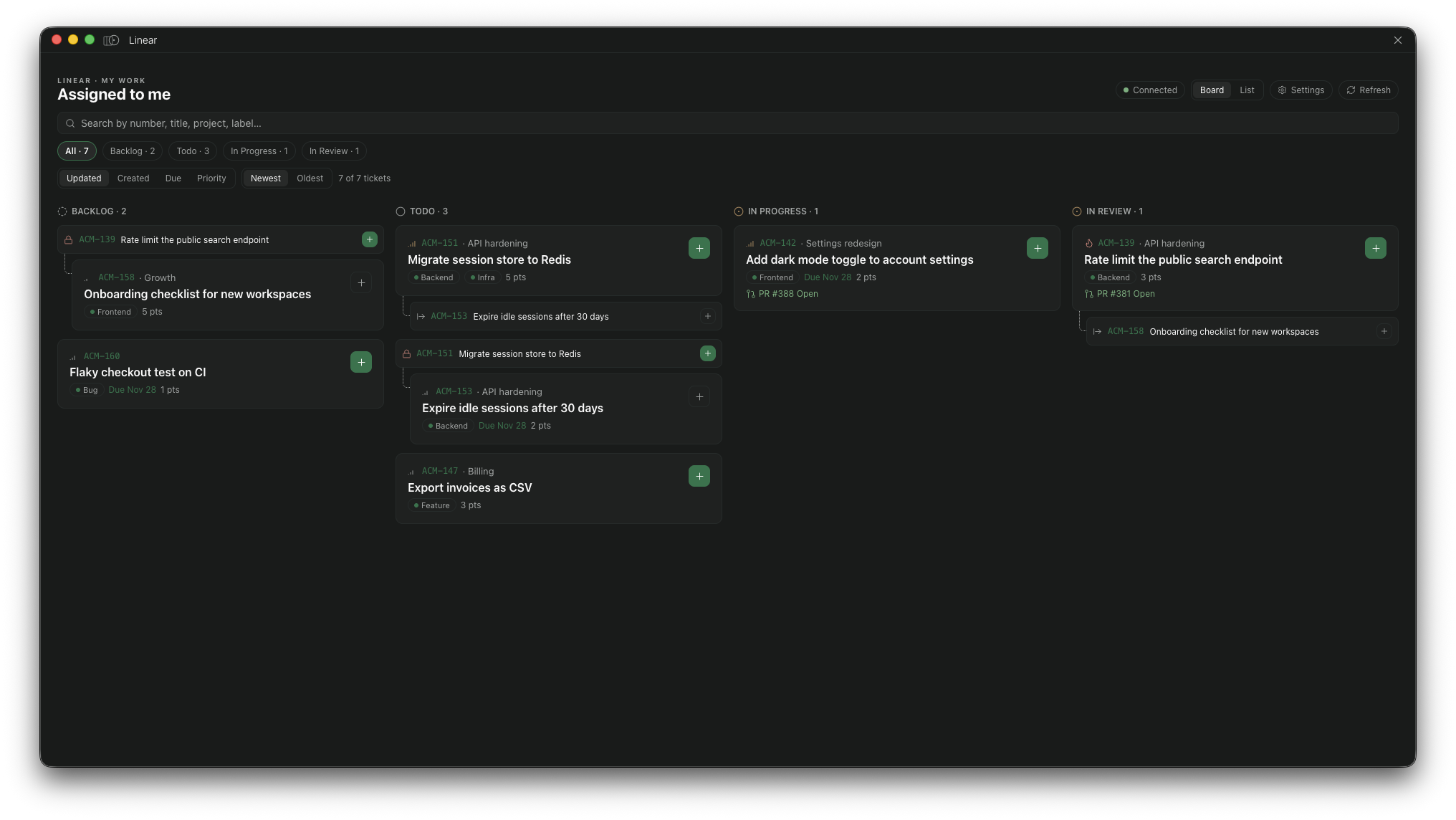
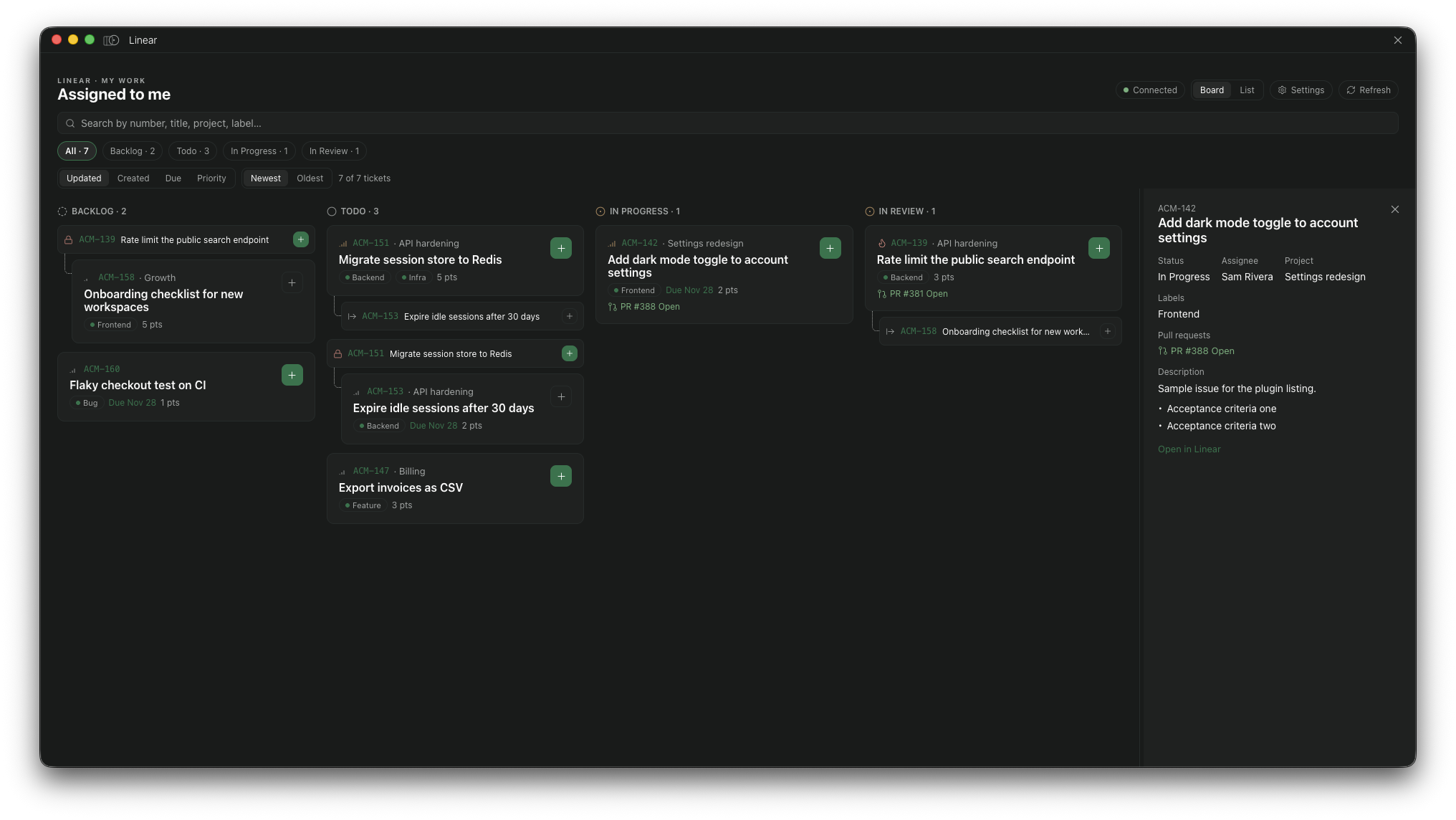
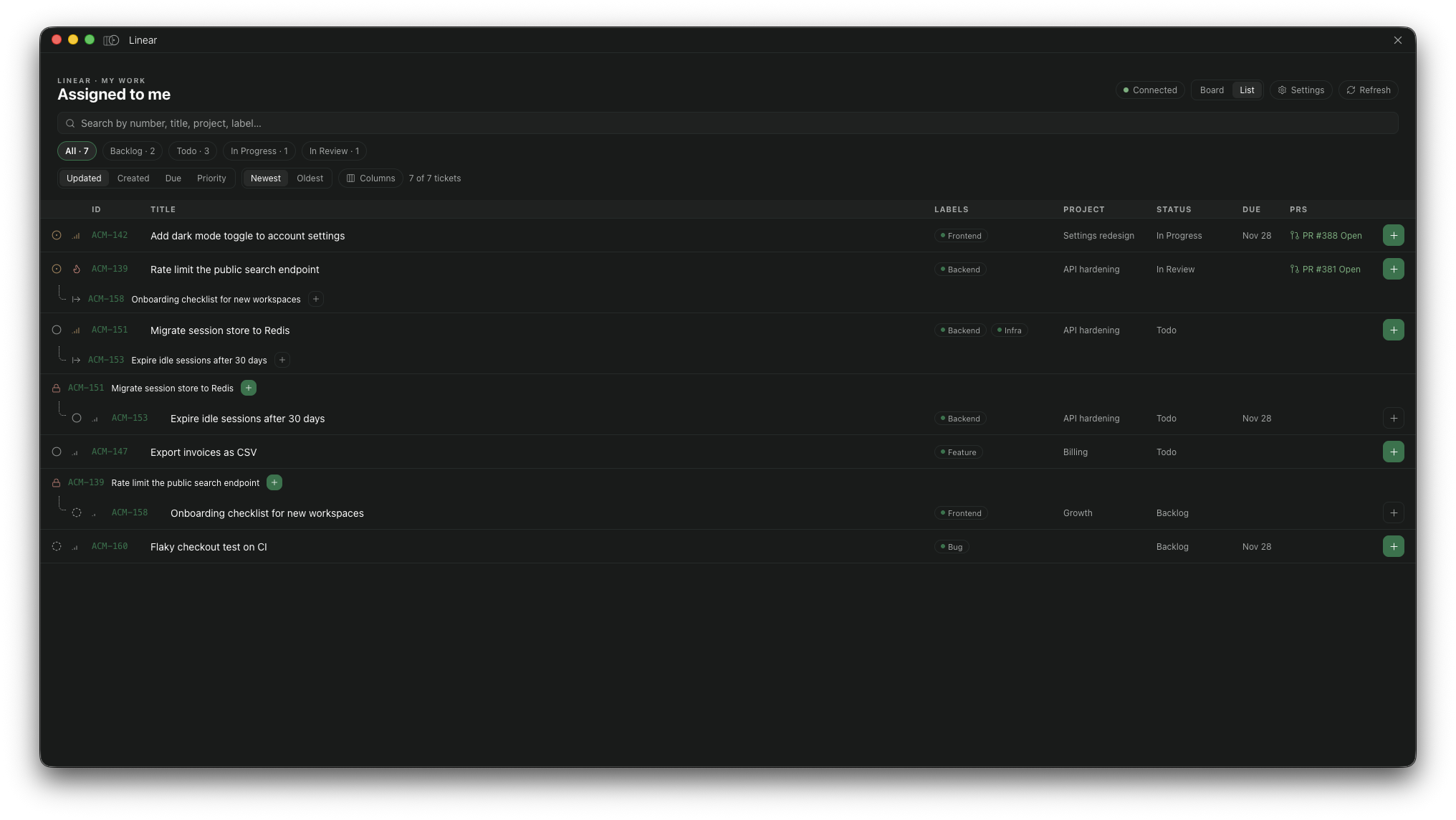
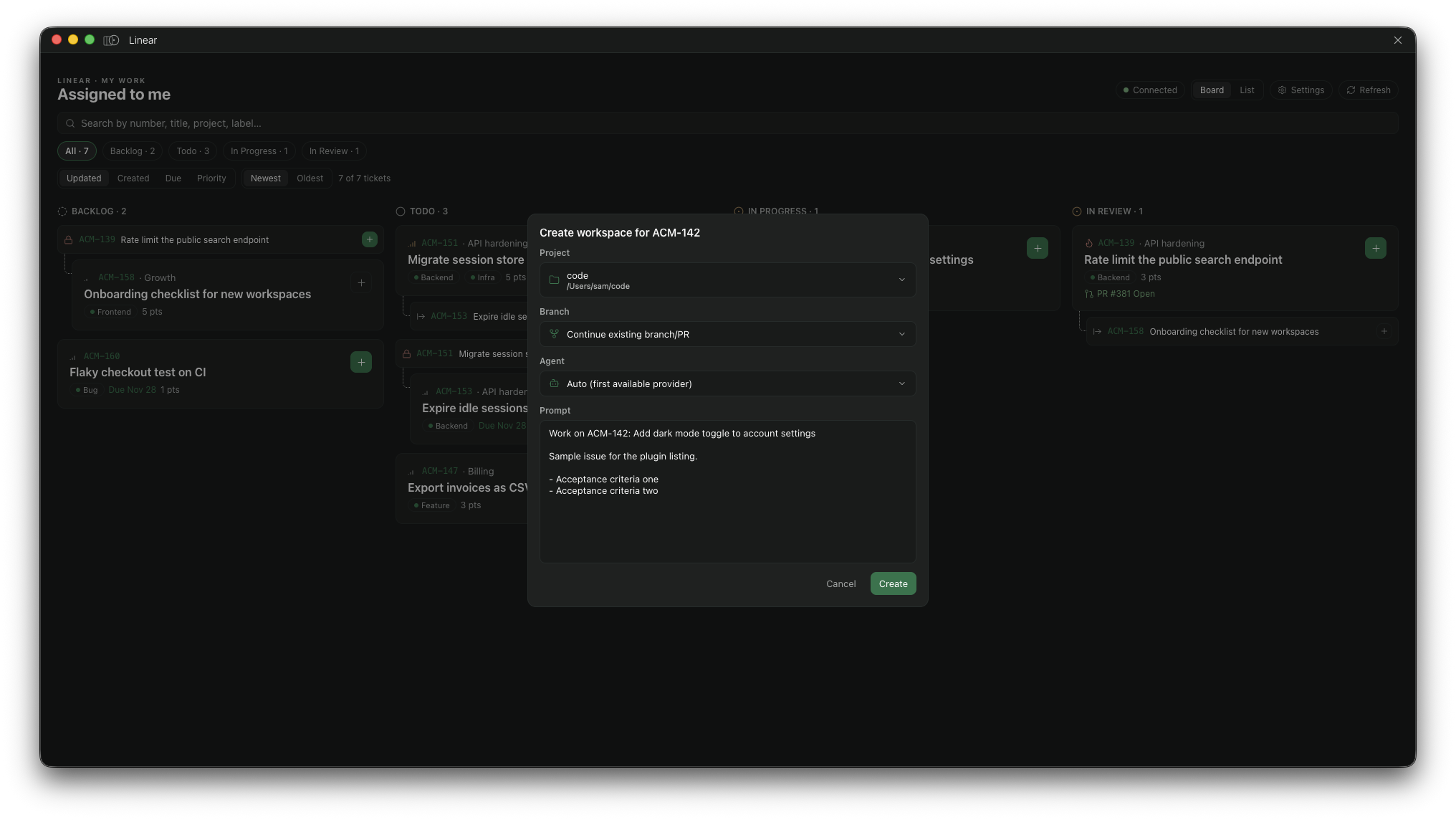
Linear brings your assigned Linear issues into Paseo and lets you start a workspace and agent for an issue in a few clicks.
What it adds
- My Issues board. A sidebar item opens a board of the issues assigned to you. Columns are grouped by status and ordered by workflow state type and position across your teams. Switch to a list view, search, filter by status, sort by updated, created, due date, or priority, and choose whether closed issues show. Cards show linked pull requests and open blocking relationships between issues.
- Issue detail. Selecting an issue opens a resizable side panel with its description, parent, sub-issues, and related issues.
- Create a workspace from an issue. Pick a Paseo project, a branch, and an agent profile. By default the workspace continues existing work: it checks out the issue's linked open or draft GitHub pull request, or the issue's branch if it exists on
origin. You can instead start a new branch from a base branch you choose, or check out any existing branch. The agent starts with a launch prompt built from the issue, which you can edit before creating. The last project and agent profile you used are remembered. - Linear issue panel. A workspace panel shows the Linear issue linked to an agent started from the board.
- Attach Linear issues. Search all issues in your Linear workspace by identifier or title from the composer, and attach an issue's details to a prompt.
Setup
Create a personal API key in Linear under Settings, Security and access. Enter it from the board's Settings, or set LINEAR_API_KEY in the Paseo daemon's environment. A key entered in the app takes precedence over the environment variable. The key needs read access to your issues, and write access if you turn on marking issues in progress.
Requires Paseo 0.8.0 or later. Branch detection needs git on the daemon machine.
Settings
- Launch prompt. A template for the agent's first prompt, with
{{identifier}},{{title}},{{url}}, and{{description}}placeholders. - Mark in progress. When on, creating a workspace moves an issue that is in triage, backlog, or unstarted to the team's started state named In Progress, or its first started state if none has that name.
- Default agent profile. The profile preselected when you create a workspace, used when there is no remembered profile from your last workspace.
- Show closed issues. Includes completed, canceled, and duplicate issues on the board.
Data access
- The daemon sends your API key to
https://api.linear.app/graphqlto read your assigned issues, search issues, and read issue details, workflow states, and linked pull requests. With mark in progress on, it also updates the issue's state. - A key entered in the app is saved, along with plugin settings and board view preferences, in
plugin-data/linear/settings.jsonunder the Paseo home directory. The file is created readable only by your user. A key fromLINEAR_API_KEYis never written to disk. - The daemon runs read-only
gitcommands. For an issue with a linked GitHub pull request, it reads theoriginURL of each Paseo project to find the matching one. In the project you pick, it lists local andoriginbranches (for-each-ref), finds the default branch (symbolic-ref), and asksoriginwhether the issue's branch exists (ls-remote). - The launch prompt and the attached issue are sent to the agent provider you choose. The attachment includes the issue's identifier, title, URL, status, priority, assignee, project, labels, and description, plus the linked GitHub pull request's number, title, and URL when there is one.
Limits
- Authentication is by personal API key only.
- The board shows up to 50 of your most recently updated assigned issues, and up to 5 blocking relationships in each direction per issue. It does not show team or project views.
- Automatic pull request checkout works only with GitHub pull requests linked through Linear's GitHub integration.