
Design canvas
Where humans and agents design together, in Paseo.

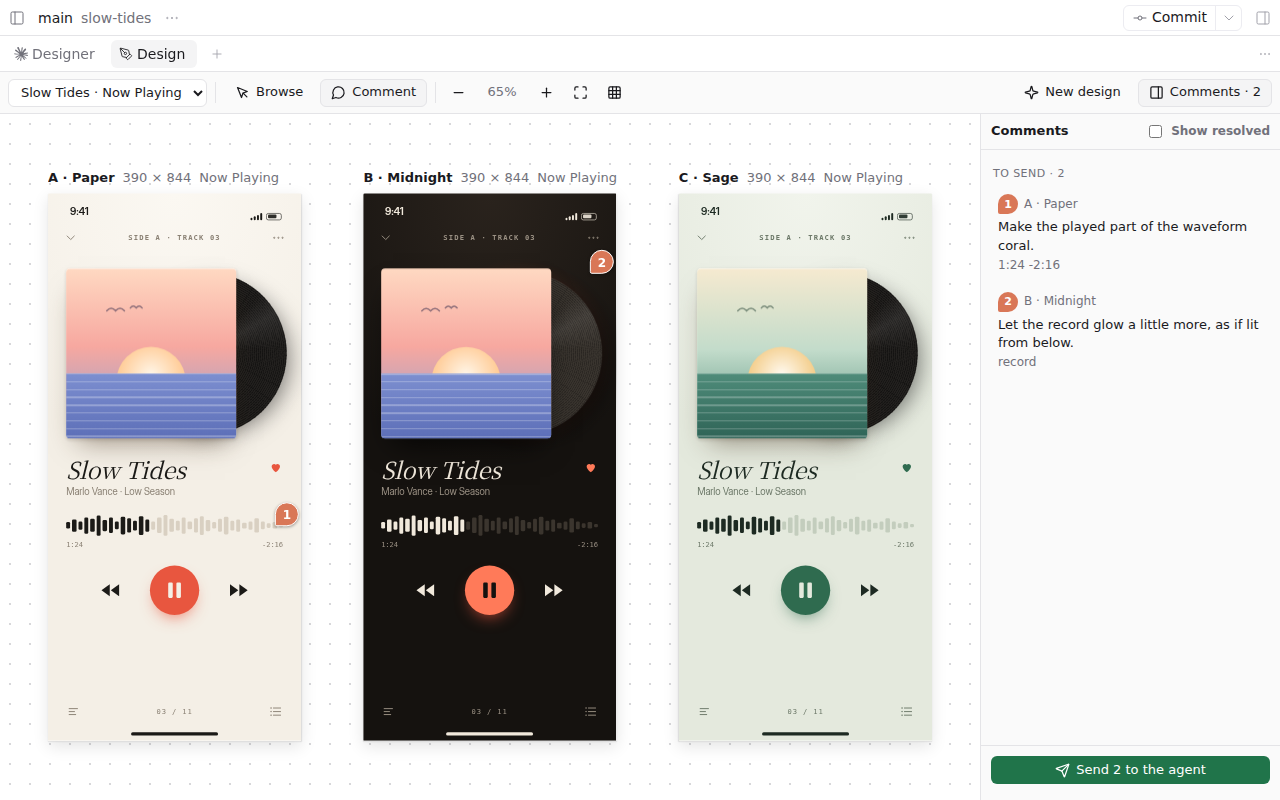
Design canvas is where humans and agents design together. Your agent draws designs as HTML artboards. You look at them side by side, move elements, fix text, tune values and point at what should change, and the agent revises. The designs are files in your workspace, so the agent that drew them can build them too.
Open the Design tab of an agent from the Command Center (Open the design canvas) or with /canvas in the chat. With no designs yet, describe what you want and press Ask the agent; /canvas <what to design> does the same from the chat. The agent sets the design up with its design tools and draws each artboard; the canvas shows it as it is written.
On the canvas:
- Switch designs from the menu at the top left. Hover a design there to rename or delete it; a deleted design's folder moves to
design/.trash/, from where you can move it back. - Artboards sit side by side, variants of one screen in one row. Scroll to pan, Ctrl/Cmd+scroll or the buttons to zoom, Ctrl/Cmd+0 to fit, Shift+G for an 8 px layout grid.
- Move (V) selects the nearest element the agent named and drags it; the arrow keys nudge it 1 px, 10 px with Shift. Drag an artboard by its title to move it. Double-click text (or press Enter on a selected element) to edit it in place: Enter keeps it, Esc puts it back. Moves and text are saved into the design's HTML and
design.json, and Ctrl/Cmd+Z undoes them (Ctrl/Cmd+Shift+Z redoes). - Hand (H) pans with a drag anywhere, over the artboards too. Hold Space for it in any tool.
- Preview (P) lets you click through a prototype. Links to another artboard's page jump to it.
- Comment (C) highlights the element under the pointer. A click picks the nearest element the agent named, and Alt+click picks the exact one. Write what should change and press Ctrl/Cmd+Enter.
- Comments wait as numbered pins until you press Send to the agent, which hands them over in one message naming each element. The agent marks each one resolved with a line on what it changed; resolved pins turn green and you can reopen them.
- Tweaks shows the controls the agent declared for a design: colors, sliders, switches and choices, each driving a CSS variable. Every artboard follows as you drag, and the values are saved to
tweaks.css. Hover a tweak to see what it drives: its elements are outlined on every artboard, the rest fades, and each tweak says how many elements on how many artboards it reaches. Hover an element on an artboard to light up the tweaks that drive it. Reset goes back to the defaults, Write into design asks the agent to put the current values into the design's CSS and defaults, and Ask the agent for tweaks has the agent pick the values worth tuning and set them up.
Requirements
Paseo 0.14 or later, daemon and app. The canvas runs in the desktop and web apps; the phone apps show a notice.
Agents get the design tools (design_create, design_list, design_read, design_resolve_comments, design_set_tweaks) through Paseo's own agent tools, which Paseo 0.15 turns off by default. Turn them on with:
paseo daemon config set daemon.mcp.injectIntoAgents true
Agents created or reopened after that get the tools in any workspace that has design/canvas.json; the canvas creates it and reopens the agent's session the first time you start a design. Without the tools the agent still works from the files and design/README.md, and marks comments resolved in comments.json itself.
Files
Everything lives under design/ in the workspace:
design/<name>/design.jsonlists the artboards (id, title, HTML file, width, optional fixed height and variant group) and the tweaks.design/<name>/<artboard>.htmlis one self-contained page per artboard, with local CSS, images and fonts.design/<name>/comments.jsonholds the comments, andtweaks.jsonandtweaks.cssthe tweak values you set. Pages linktweaks.css, so they look the same outside the canvas.design/README.mdtells agents the conventions, and is brought up to date when the plugin is; a README of your own there is left alone.design/canvas.jsonmarks the workspace.
What it reads and sends
The plugin reads and writes files under design/ only. When it inlines a page's local CSS, images, fonts and scripts, it refuses references, symlinks included, that lead outside design/; a design folder that is itself a symlink is followed. The plugin sends a message to the agent only when you start a design, press Send to the agent or press Ask the agent for tweaks; it has no server of its own.
Each artboard runs in a sandboxed frame with no access to Paseo, and a content security policy stops the page from loading fonts, images, scripts or data from the network. That policy does not make a design fully offline. A design's own code can still reach the network in two ways:
- A script can navigate its frame to another web address and send whatever it puts in that address. The policy cannot stop a page from navigating itself.
- Markup placed before the page's
<head>tag runs before the policy takes effect, so it can load from the network.
Open only designs you trust, such as ones your own agents wrote, and read a design's HTML before you open one from someone else.
Limits
- Only elements with a
data-dc-idcan be moved, because a move is written back to the element with that id. Moving changes the element'stranslate(orleftandtopwhen it is positioned), so the rest of the layout stays where it was. Resizing is planned. - Text is edited one run at a time, without line breaks. Text inside an SVG, or text a script writes, can't be edited in place; the canvas says so, or refuses the edit when the page's source doesn't have that text.
- A tweak applies to every artboard of the design, through a CSS variable on the page's root.
- Fonts, images and scripts from a CDN do not appear, because the policy blocks them. Put them in the workspace.
- After you reload or update the plugin, an agent gets its design tools back the next time its session opens.
- Comments point at elements by
data-dc-id, then by position in the page. When the agent rebuilds a page without its ids, a pin falls back to where the element was.